

1
Start a New Interactive Chat
Open Revolte, start a new chat, and confirm that Interactive mode is selected.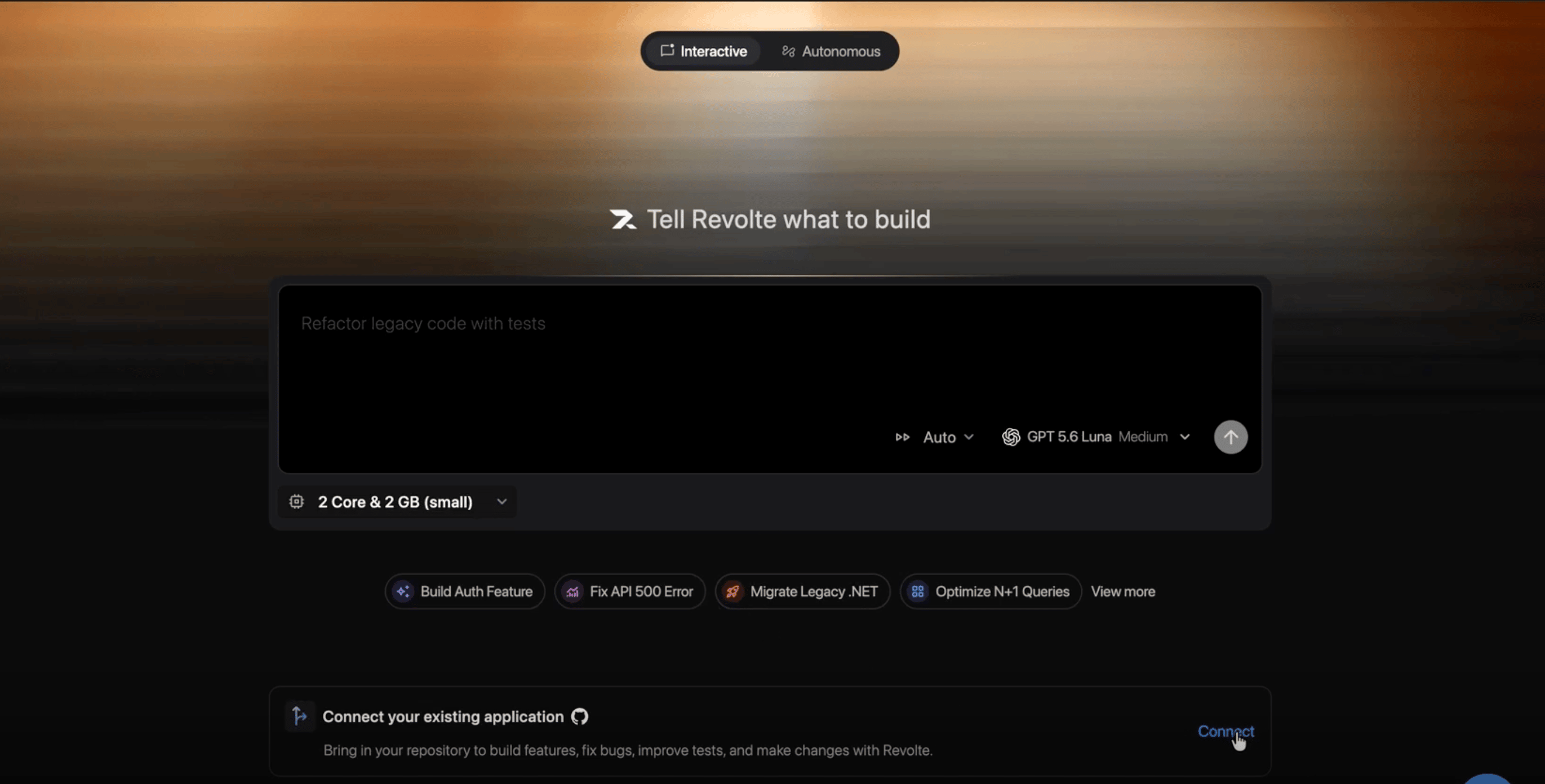
2
Describe What You Want to Build
In the prompt box, describe the application and list its essential features. For example: “Build a responsive chat application with conversation search, message timestamps, and a typing indicator.”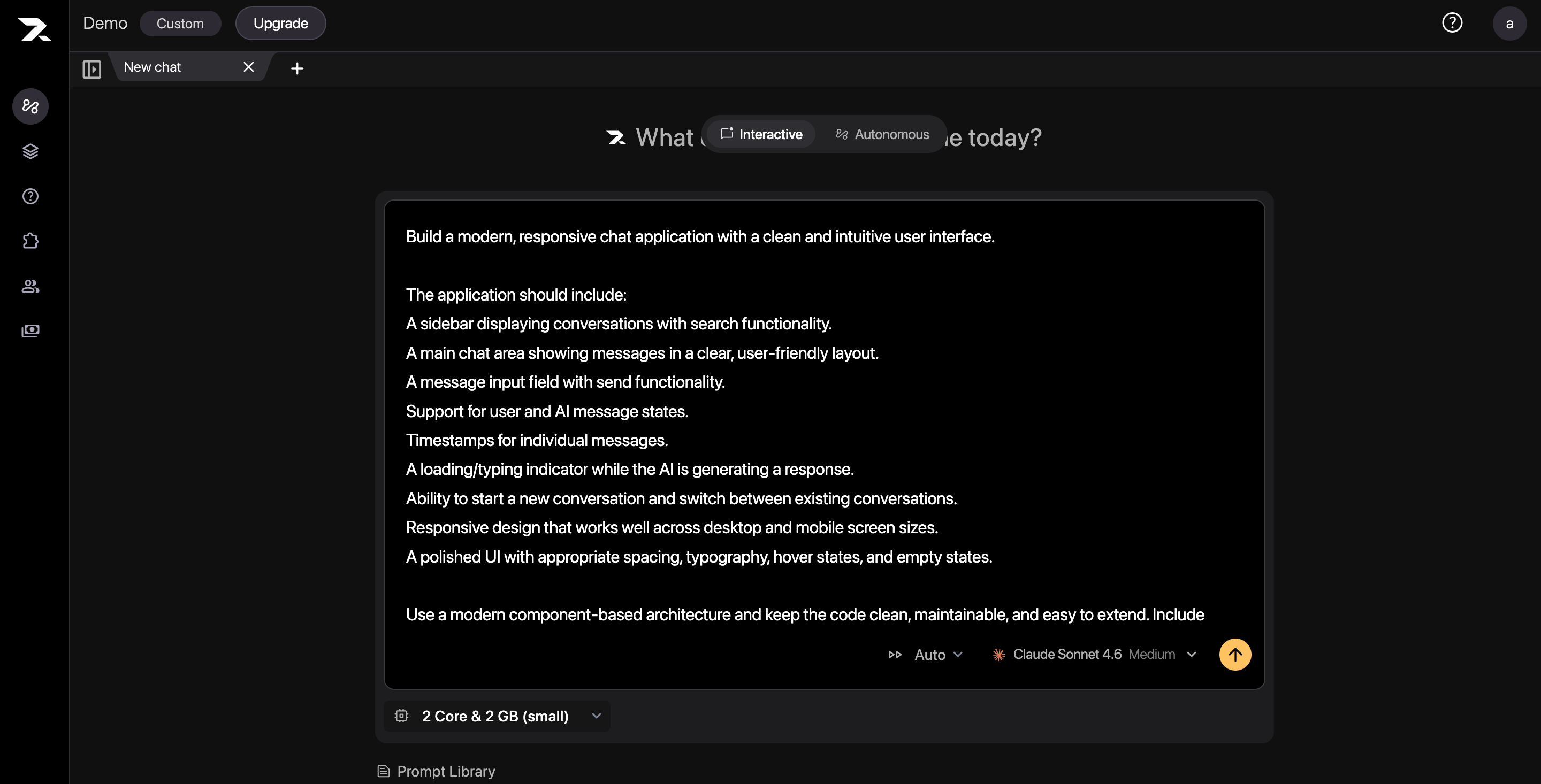
3
Choose an AI Model
Open the model selector and choose the model Revolte should use for the task.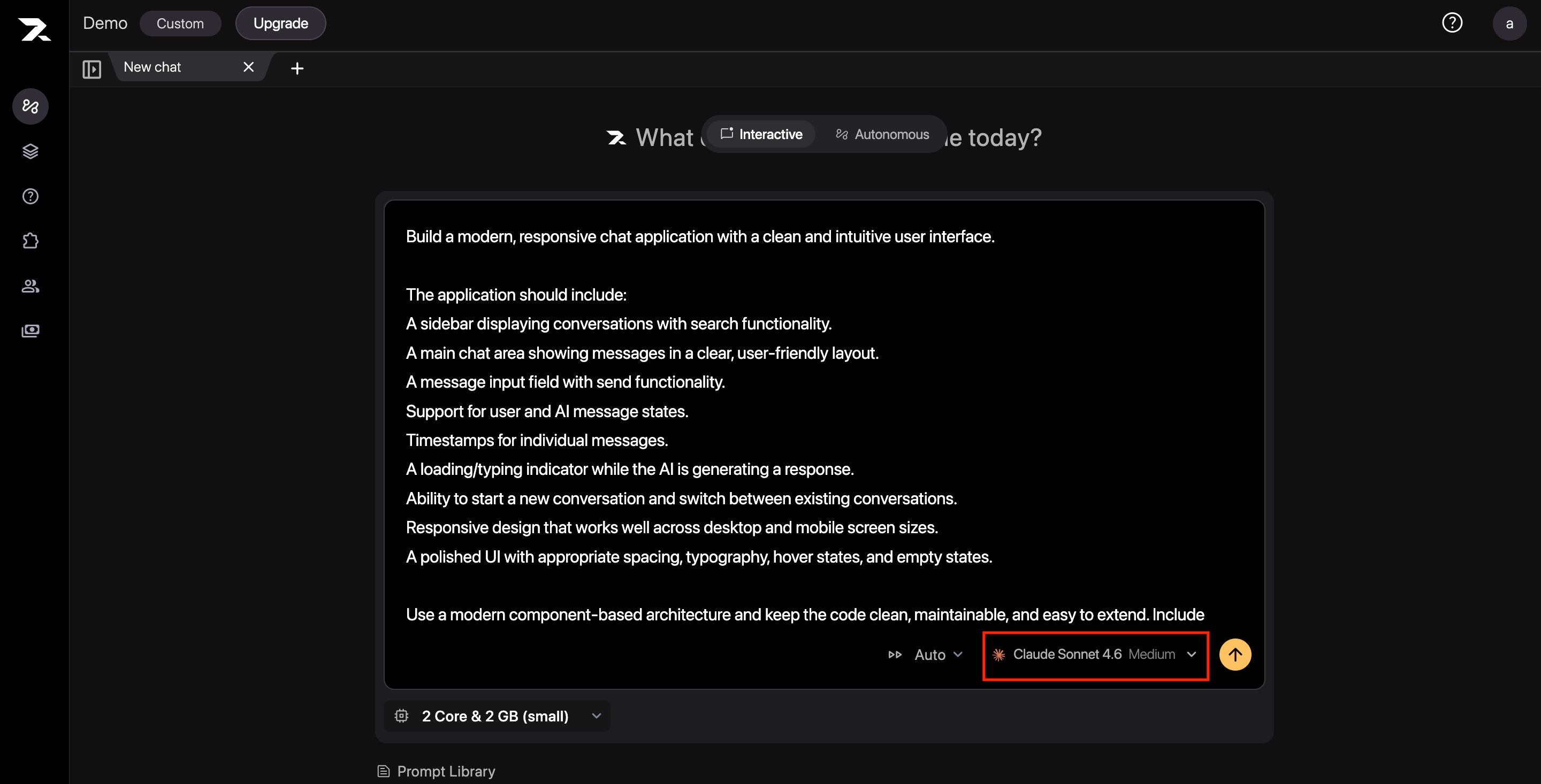
4
Choose a Sandbox Size
Choose the CPU and memory size for the sandbox. Use a larger sandbox for workloads with heavier builds, dependency installation, or memory-intensive tests.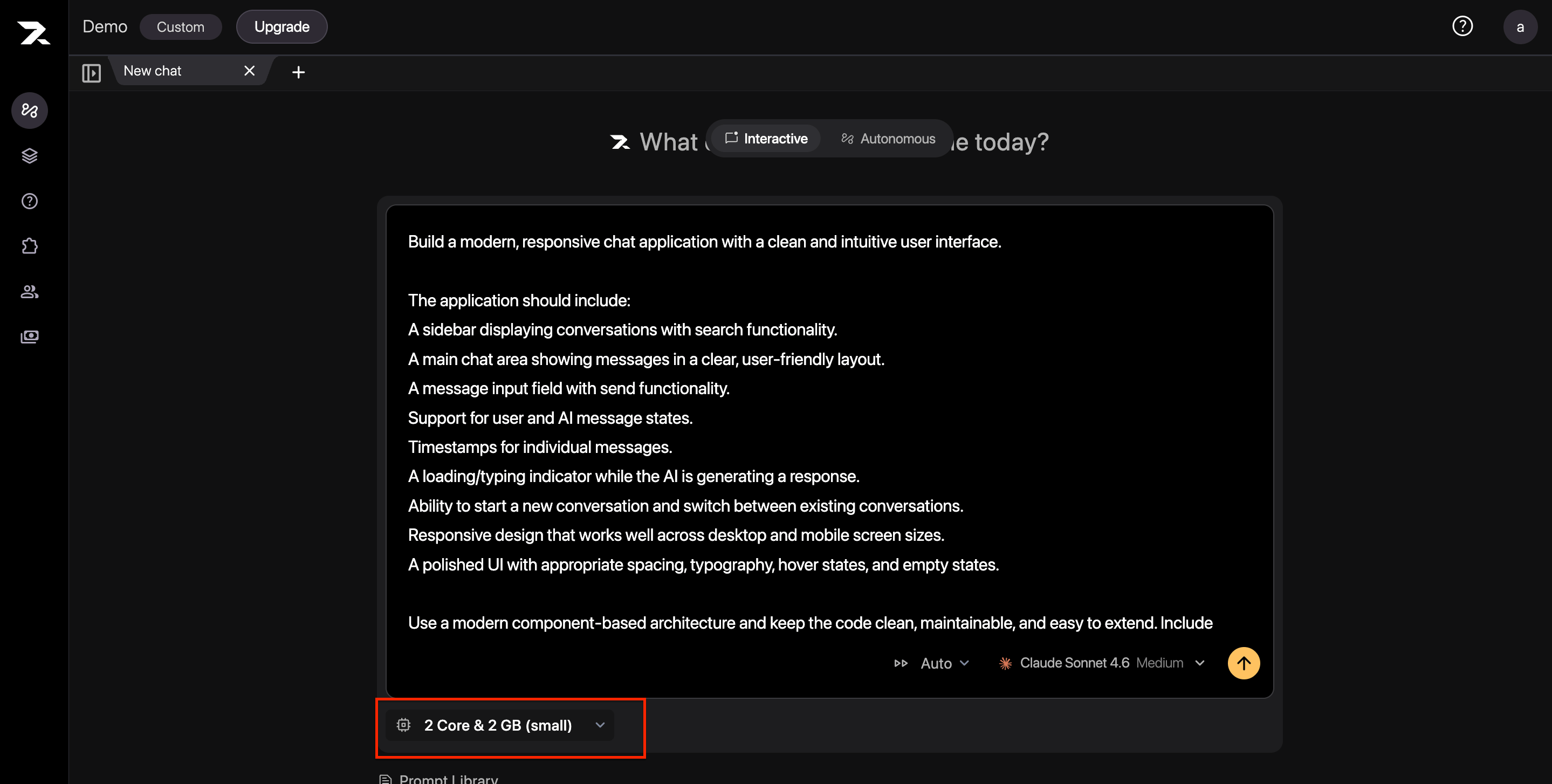
5
Submit the Request and Wait for Setup
Submit your request. Revolte provisions the sandbox and begins working on the application. Wait until the Sandbox Environment status shows Active.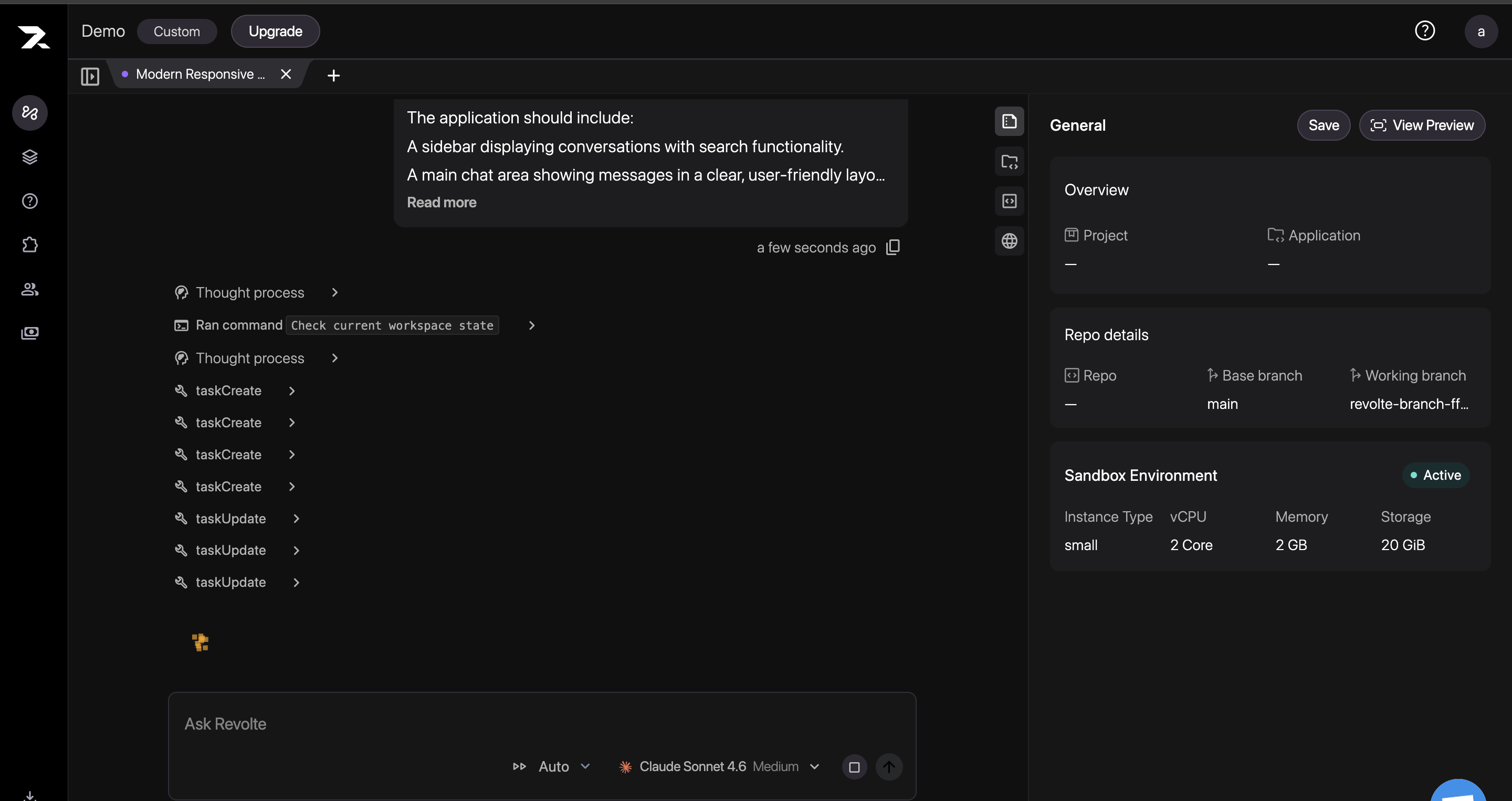
6
Answer Clarifying Questions
If Revolte asks a clarifying question, select one of the suggested answers or enter your own response. Continue until the requirements reflect the result you want.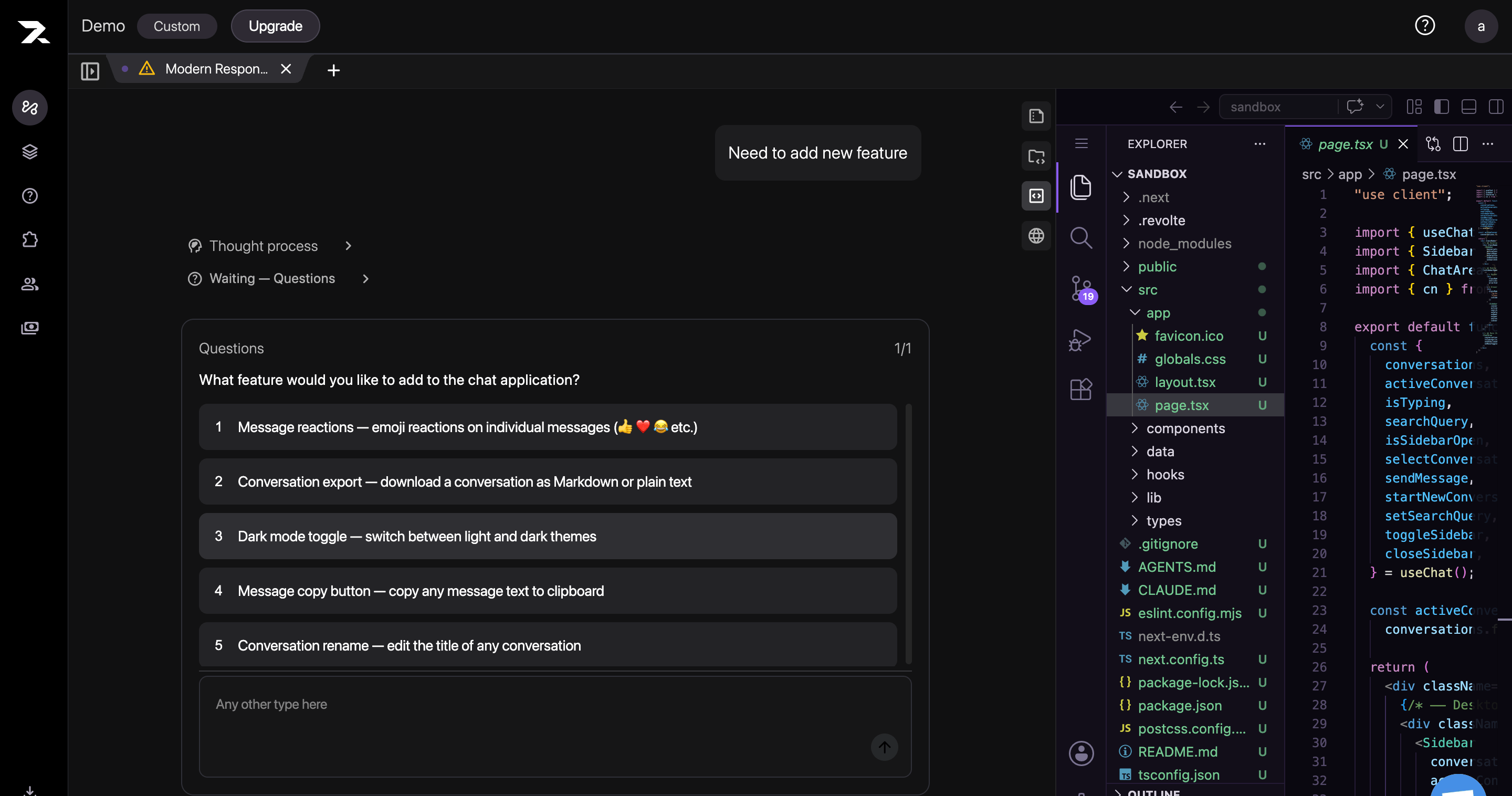
7
Review the Generated Code
Open the Code panel to inspect the files Revolte created or modified. Review the file tree and code, and make any necessary edits directly in the sandbox.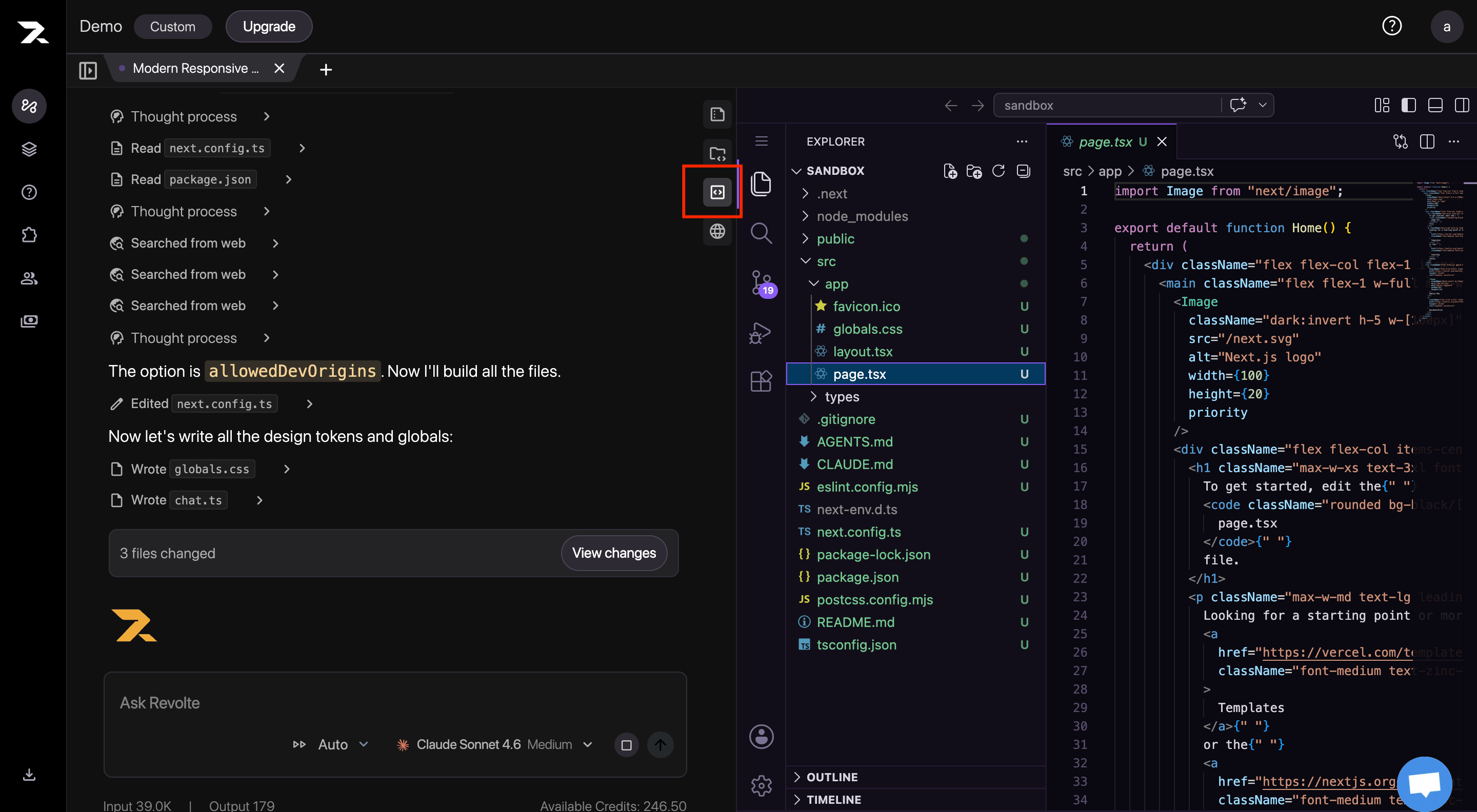
8
Inspect the Code Diff
Open the Commit panel, expand a file under File changes, and use the Inline or Split view to inspect every addition and deletion before committing.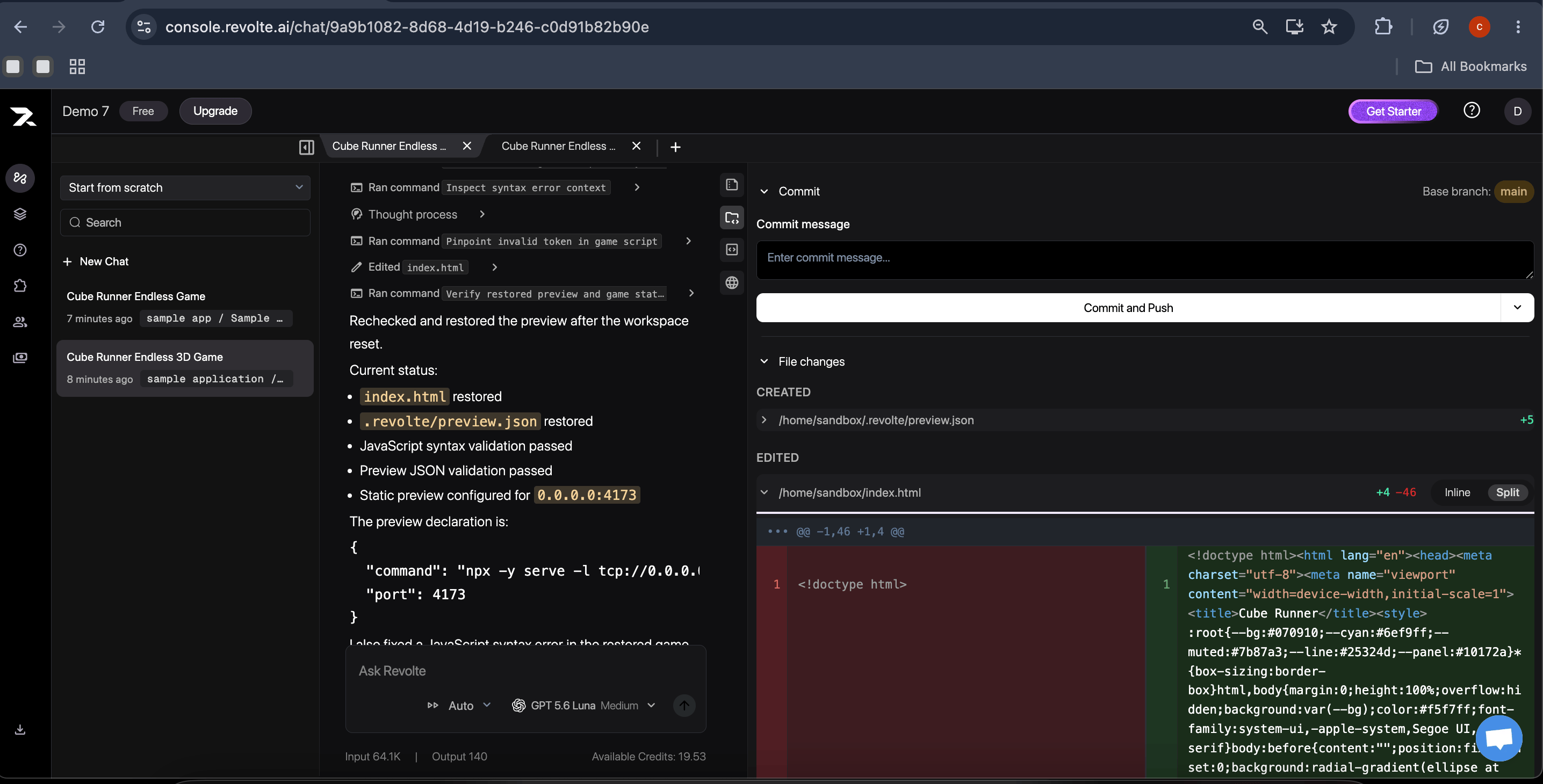
9
Review and Commit the Changes
Open the Commit panel and review the changed files. Enter a clear commit message, then select Commit and Push to send the changes to the connected repository.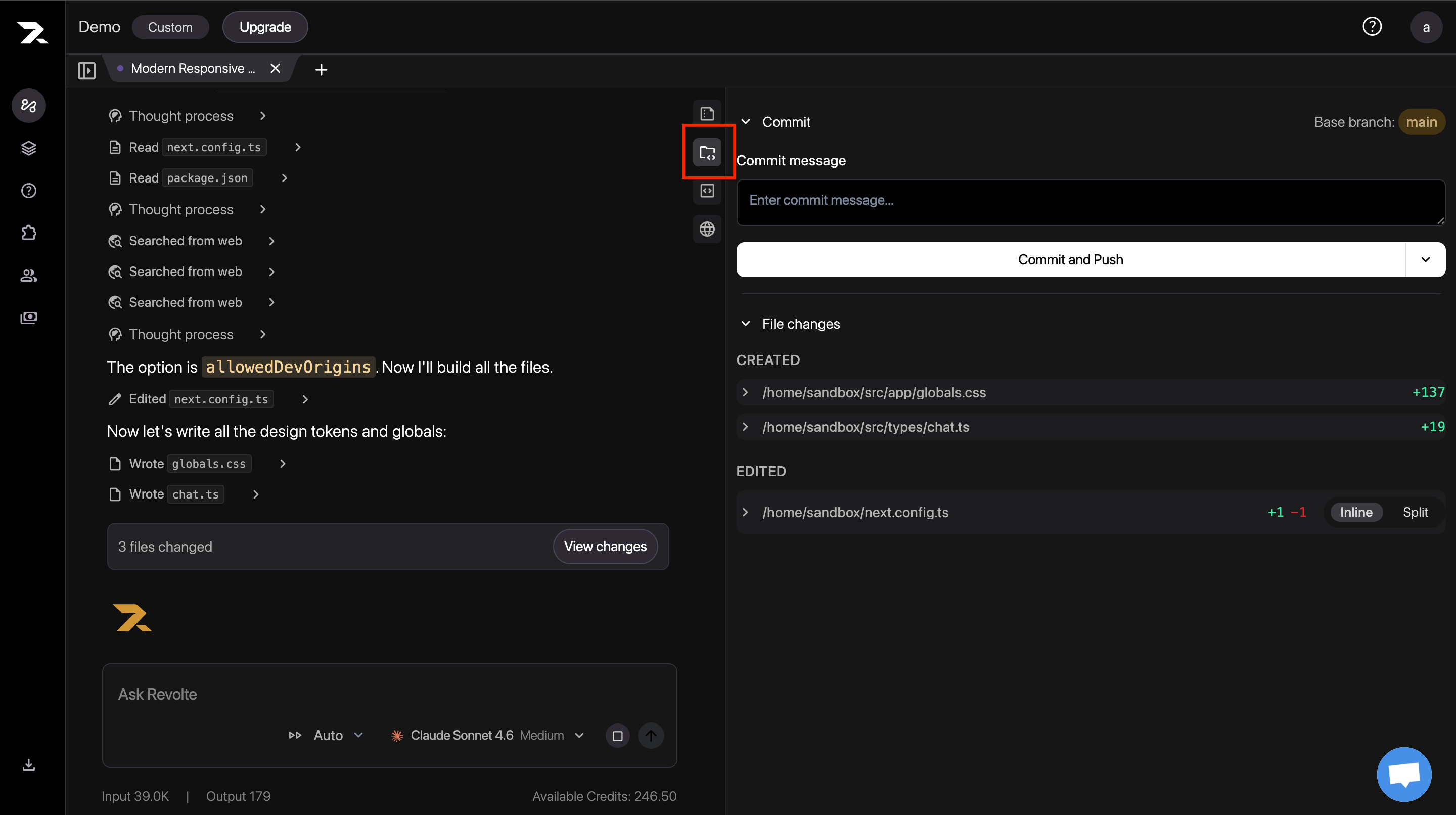
10
Continue in the Secure Built-In VS Code Workspace
After committing the change or reviewing the resulting pull request, open the secure, sandbox-backed VS Code workspace. Use the familiar Explorer, Source Control, editor, and terminal tools to inspect or update files without leaving Revolte.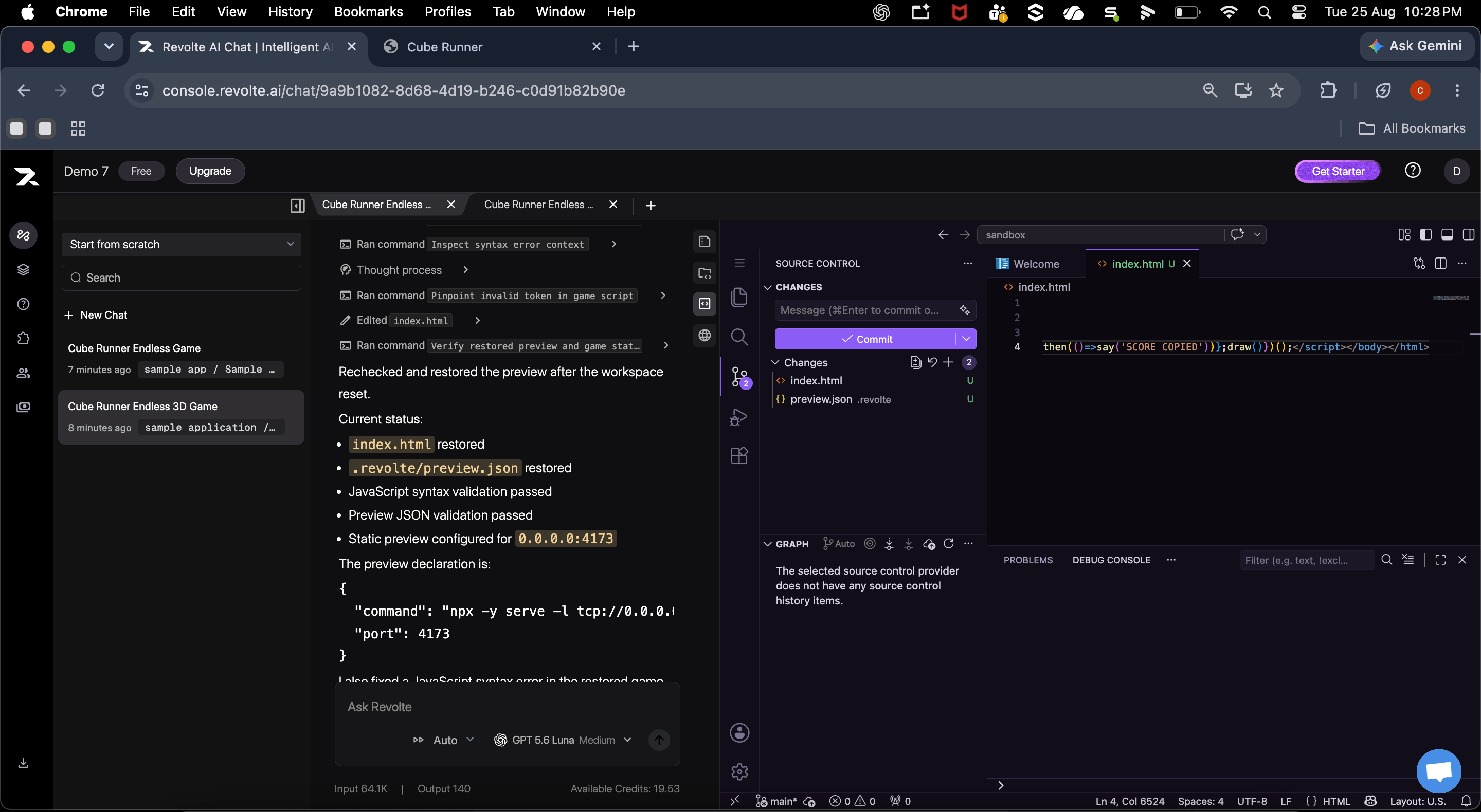
11
Validate the Result in Live Preview
Open Live Preview and interact with the running application in the sandbox. As you edit the code, hot reload refreshes the preview so you can validate changes immediately.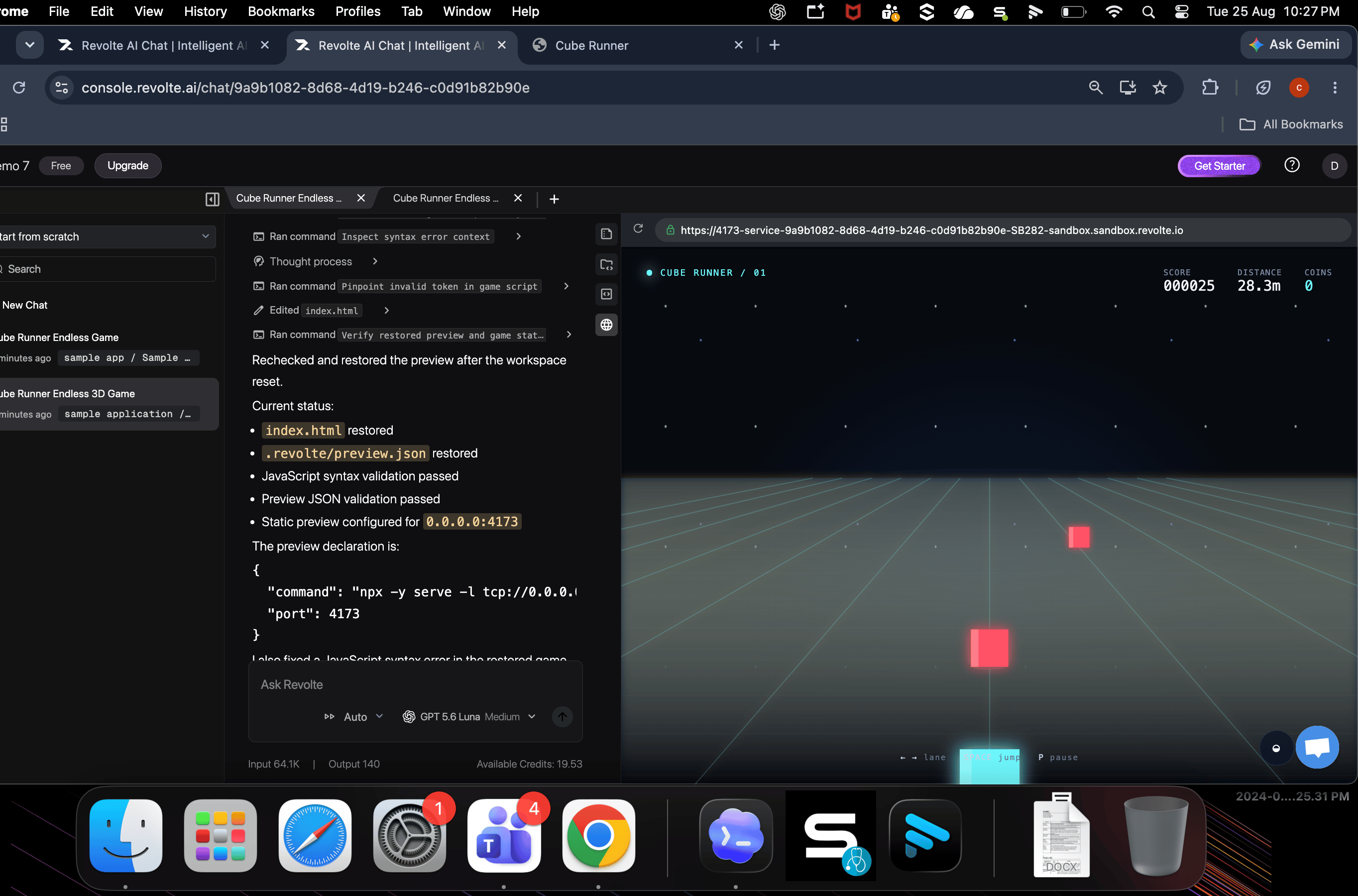
Next steps
Deploy from Interactive Chat
Move your committed Chat work into a managed Preview environment and validate the deployed application.