

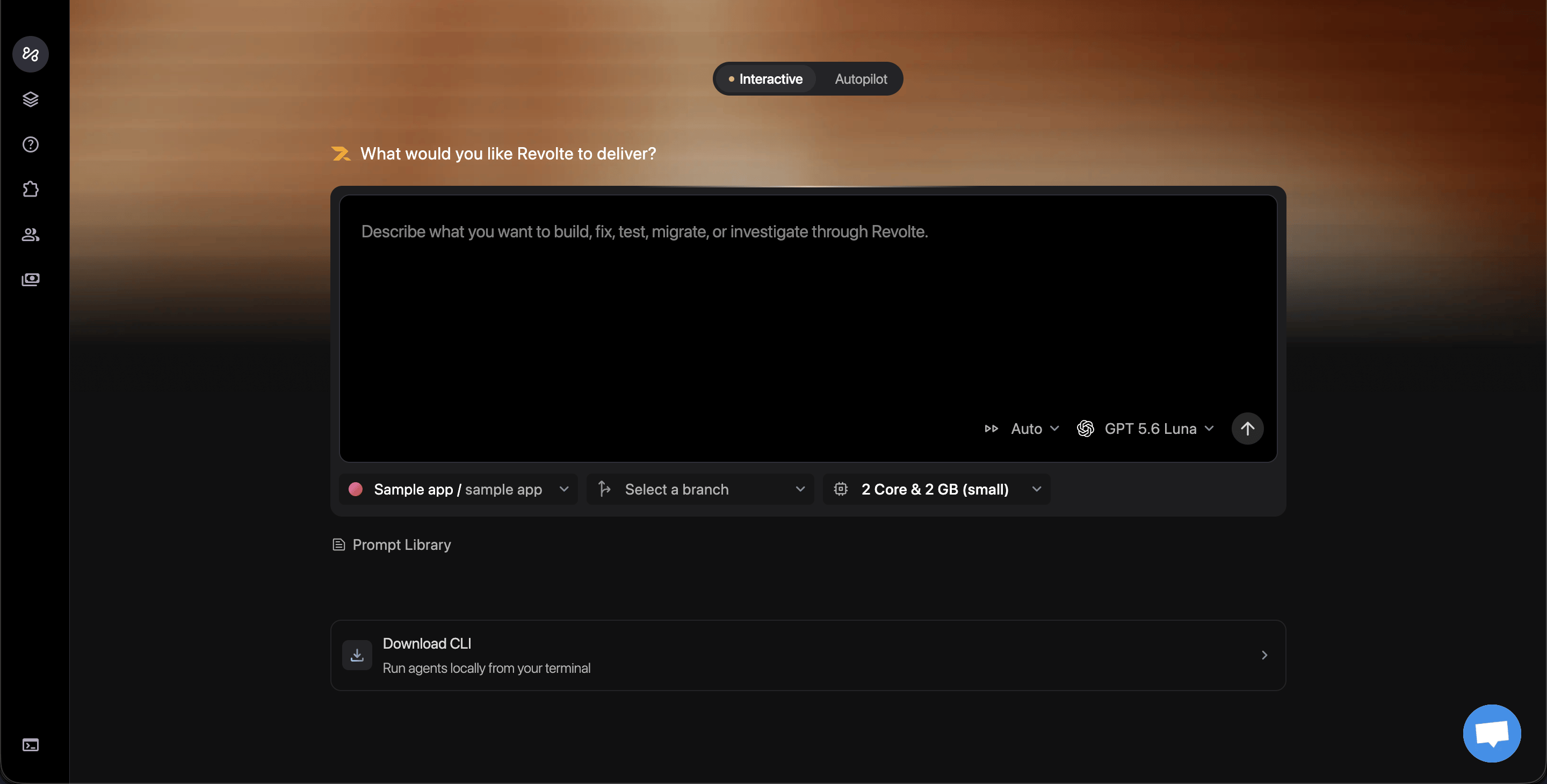
Starting a thread
Before you send your first message, you configure where and how the agent should work:- Application & repository — Scope the thread to one of your connected applications so the agent works against real repository context, complete with branch history and prior threads. If you don’t pick one, the agent starts in a blank local project you can link to a repository later.
- Base branch — Choose which branch the agent should start from; it creates its own working branch off of it, so your base branch is never touched directly.
- Sandbox size — Pick Small, Medium, or Large compute for the sandbox the agent runs in, based on how heavy the task’s build/test footprint is. See Sandboxes for details.
main, in a beefier sandbox because the test suite is slow.”
None of this is required to get started if you are a new user. You can send your first message with no application, repository, or branch selected—the agent works in a scratch sandbox and you’re only prompted to connect a repository and application when you go to commit its work.
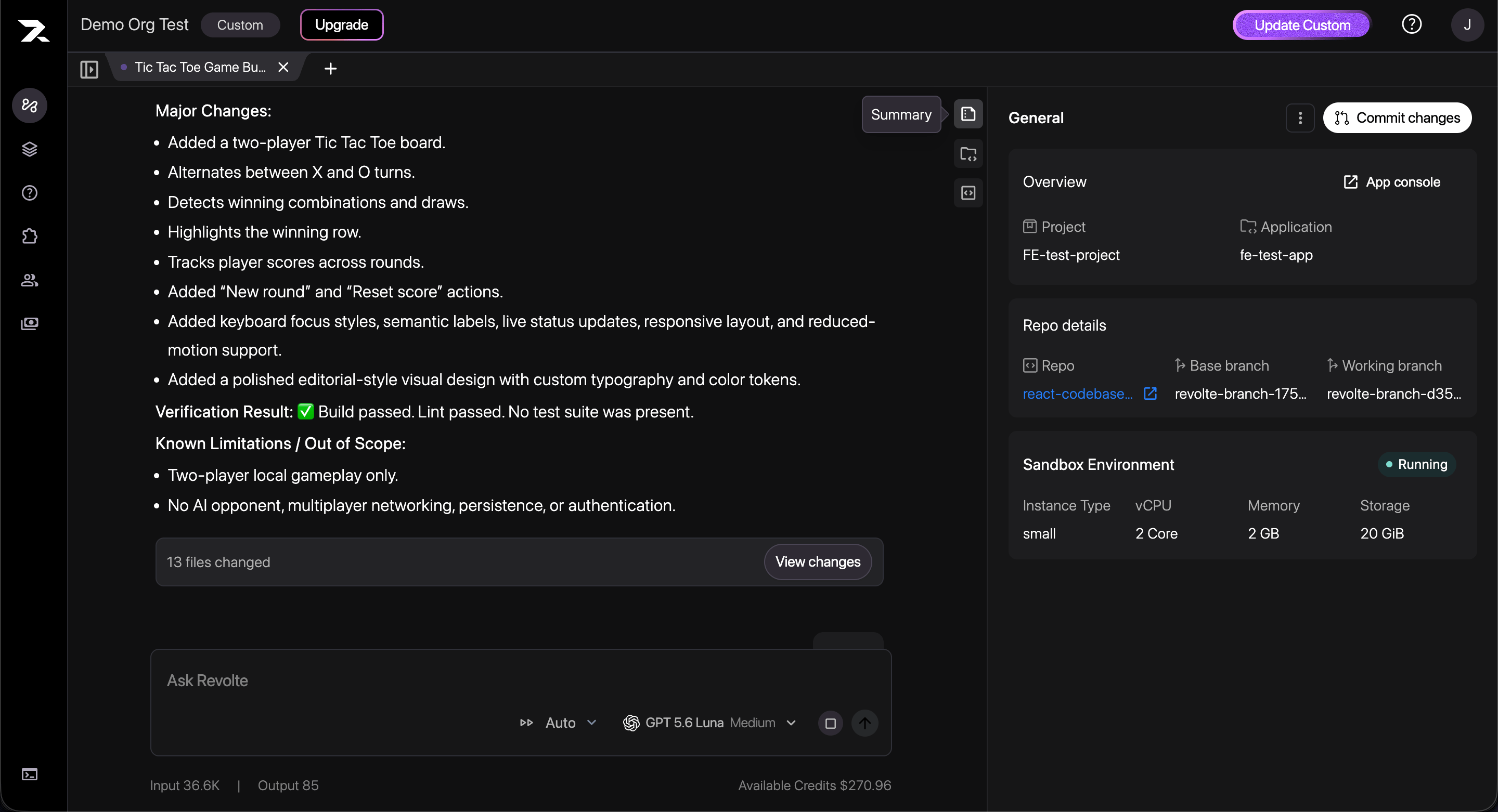
Thread details panel
A side panel keeps the thread’s context in view at all times, so you don’t have to leave the conversation to check what you’re working against:- General — The project and application the thread is scoped to, with a link out to the App console.
- Repo details — The connected repo, base branch, and the working branch the agent is committing to.
- Sandbox Environment — Live status of the sandbox (e.g. Running), plus its instance type, vCPU, memory, and storage.
Choosing a model and reasoning effort
The model picker allows you to switch between Claude, GPT, Grok, and DeepSeek models per thread, each with its own reasoning-effort tiers (e.g. low/medium/high) where the model supports it. That means you can match the model to the task: a fast, cheap model for routine changes, a higher-effort one for something that needs deeper reasoning.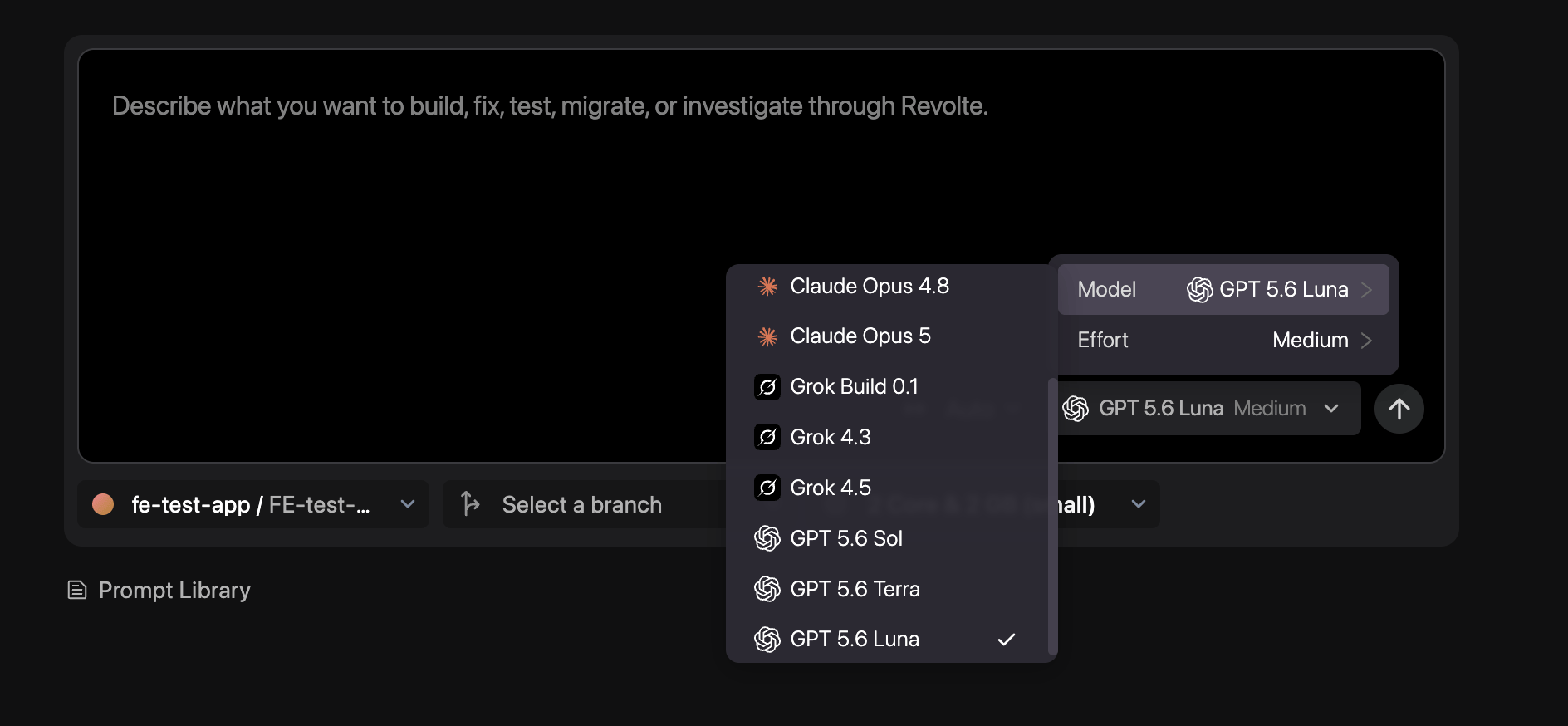
Controlling how much oversight the agent gets
Every thread runs in one of two execution modes, which decide what happens when the agent wants to write or edit a file:- Auto — File changes are approved automatically as the agent proposes them, so it runs uninterrupted end-to-end. Best for well-scoped tasks where you’re comfortable reviewing the result rather than every step.
- Manual — The agent pauses and batches up its proposed file writes/edits for your review before continuing. You see a diff (or full file preview for new files) for each pending change and can allow or deny them individually, or allow/reject the whole batch at once.
Prompt library
A built-in Prompt Library link sits right below the composer, giving you quick access to a set of reusable, pre-written prompts for common tasks—so you don’t have to write a good task description from scratch every time.Committing your work
When the agent’s changes are ready to leave the sandbox, Revolte walks you through getting them into your repository. What that looks like depends on whether you started the thread with a repository connected:1
Connect your Git provider (first commit only)
If your organization hasn’t connected a repository provider yet, committing prompts you to authorize one first. GitHub is available today; GitLab and Bitbucket are coming soon.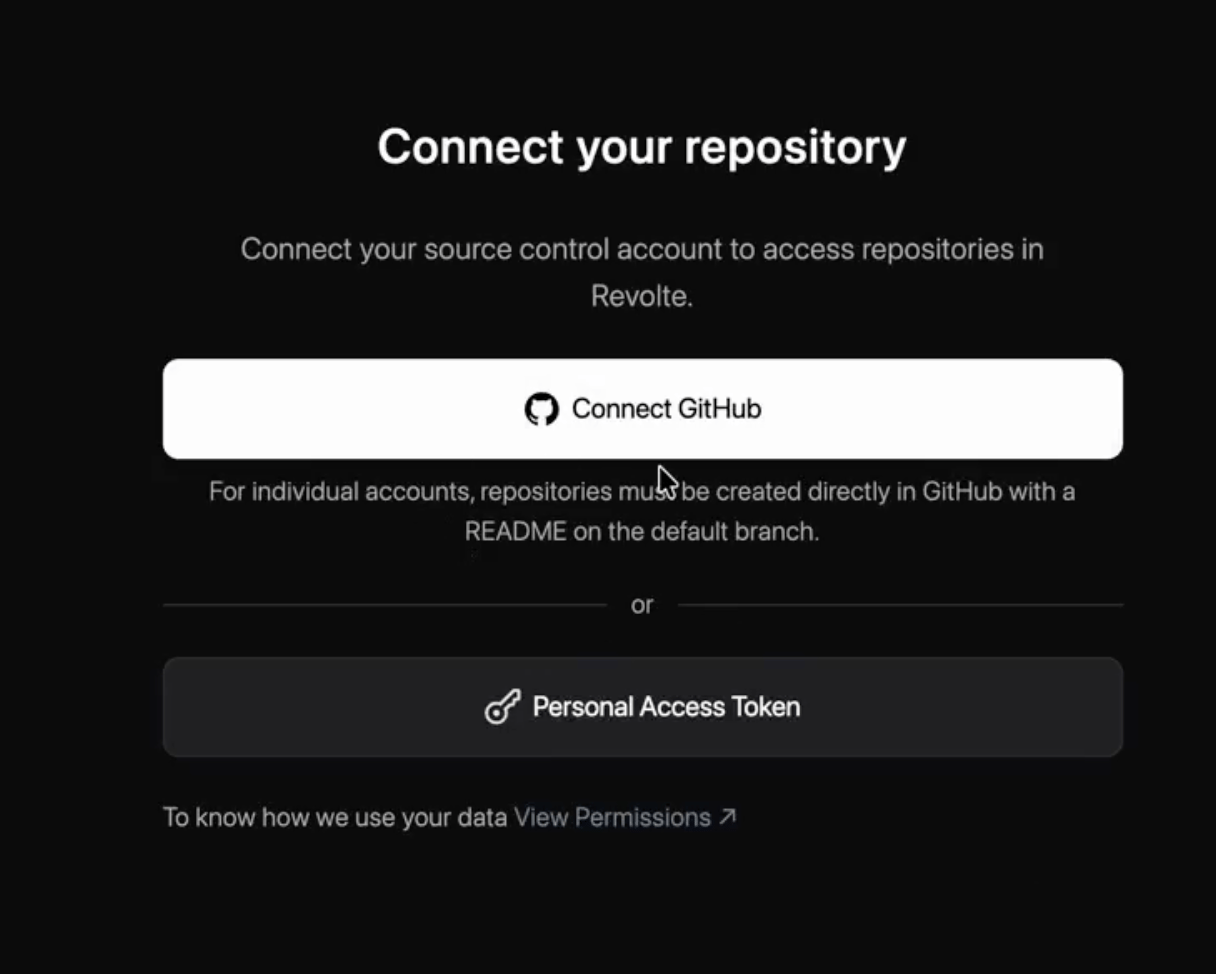
2
Create or choose an application (first commit only)
Next, pick the project and application this thread’s work belongs to, or create new ones on the spot—including a brand-new repository if you don’t have one yet.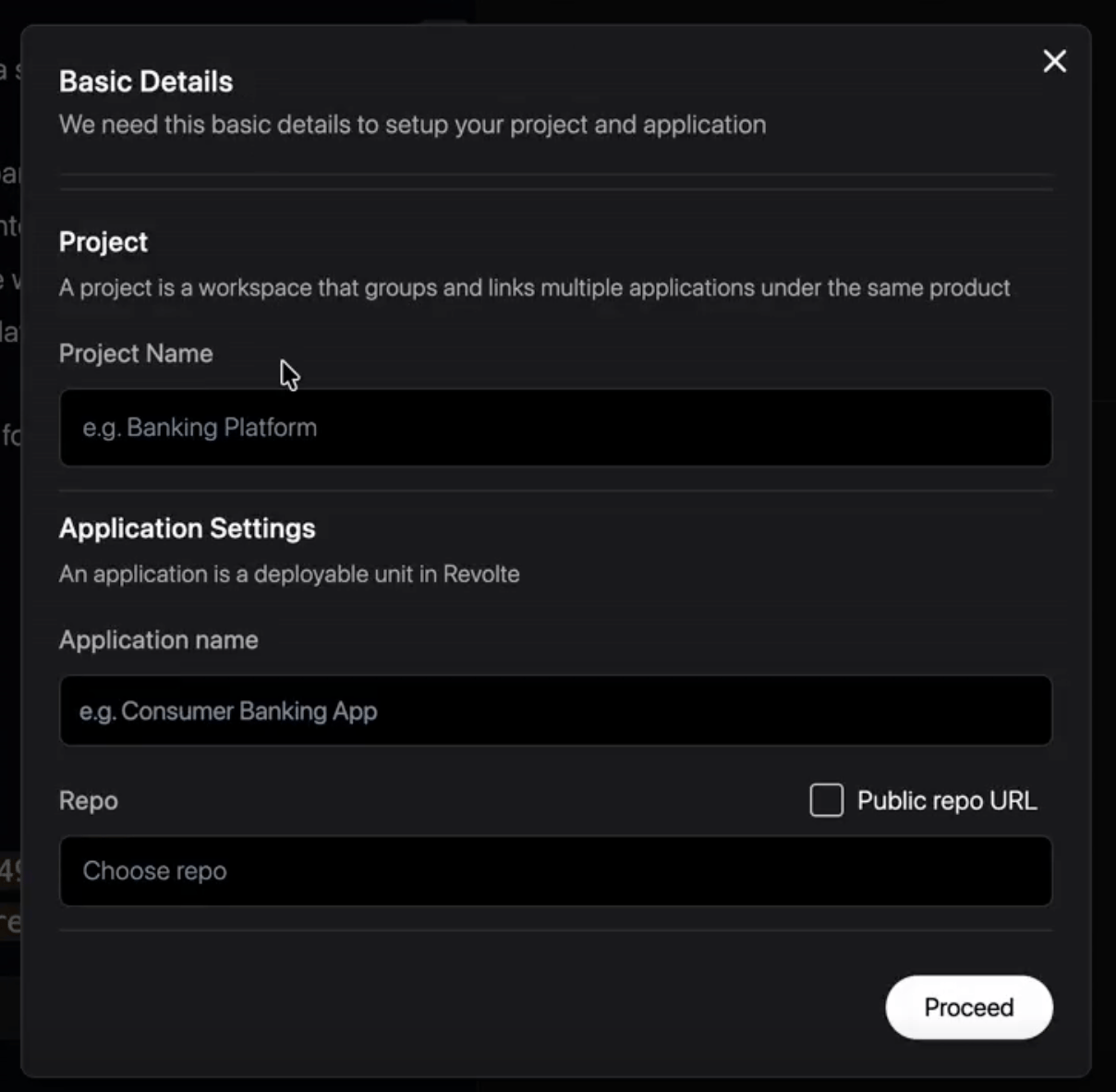
3
Commit and push
With a repository linked, you choose the target branch and either write your own commit message or have Revolte generate one from the diff. Revolte then commits and pushes the changes to that branch on your Git provider.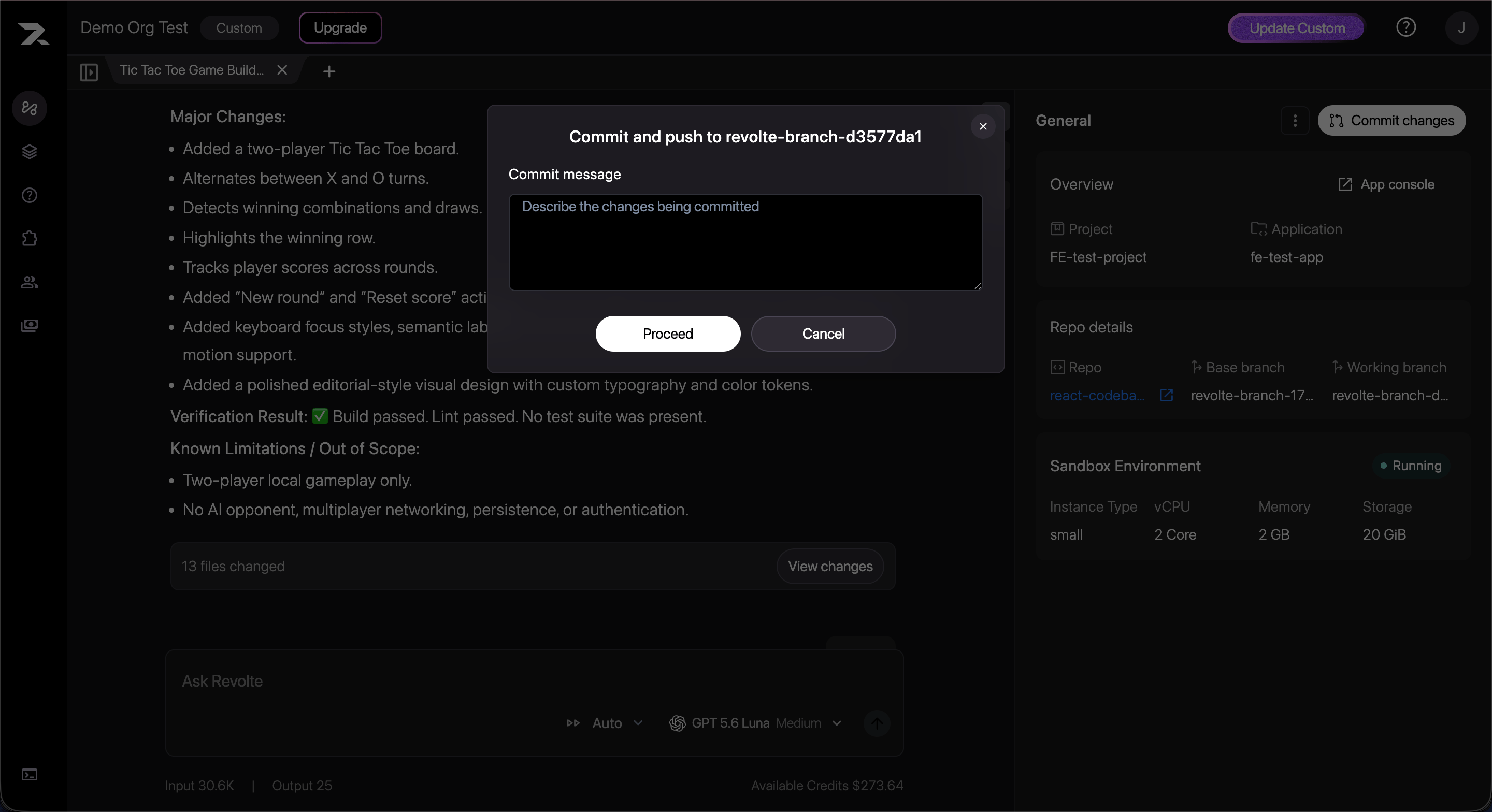
Usage and credits
AI Chat usage draws from your organization’s shared AI credit balance. If credits run out, active and new threads are blocked with a clear notice, and any company admin can top up credits without needing to involve engineering leadership for every request.Next steps
Deploy from Interactive Chat
Continue from committed Chat changes to
revolte.yml generation, Preview launch, and live validation.- Sandboxes — Understand the execution environment behind every thread.
- Jira Workflow — See how the same agent runs autonomously from a Jira ticket instead of a chat prompt.