

Configuration
Revolte offers two ways to connect your Jira workspace: either during the initial onboarding flow or directly from the application workspace settings.- Autopilot
- From the Application (Extensions)
Configure your Jira integration during your initial workspace setup sequence.
1
Initialize Workflow Automation
Navigate to the Chat section and select Autopilot. Connect your Jira workspace to begin the setup process.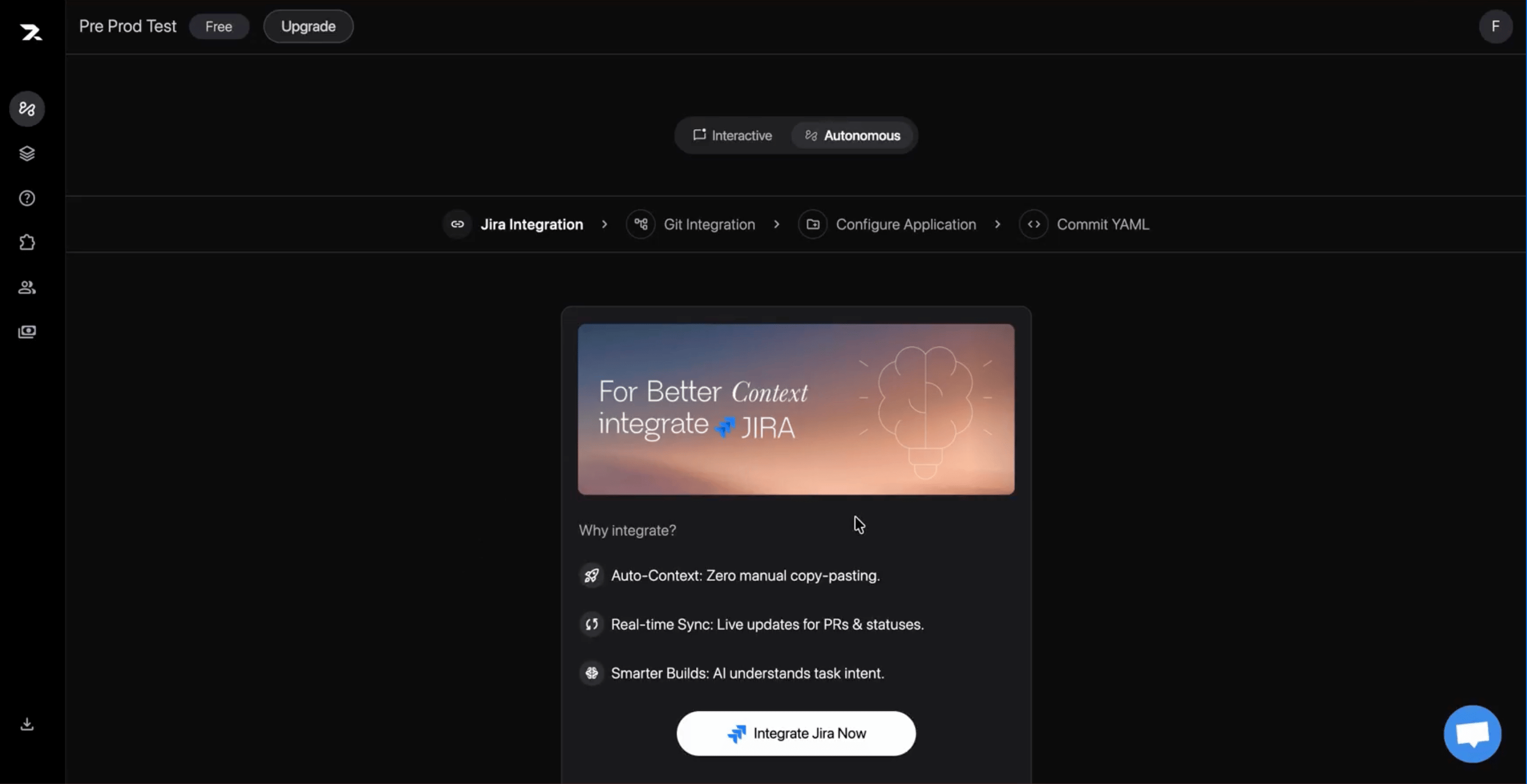
2
Get the Revolte App for Jira
You’ll be redirected to the Atlassian Marketplace listing for revolte-jira-plugin. Review the requested permissions then click Get app to continue.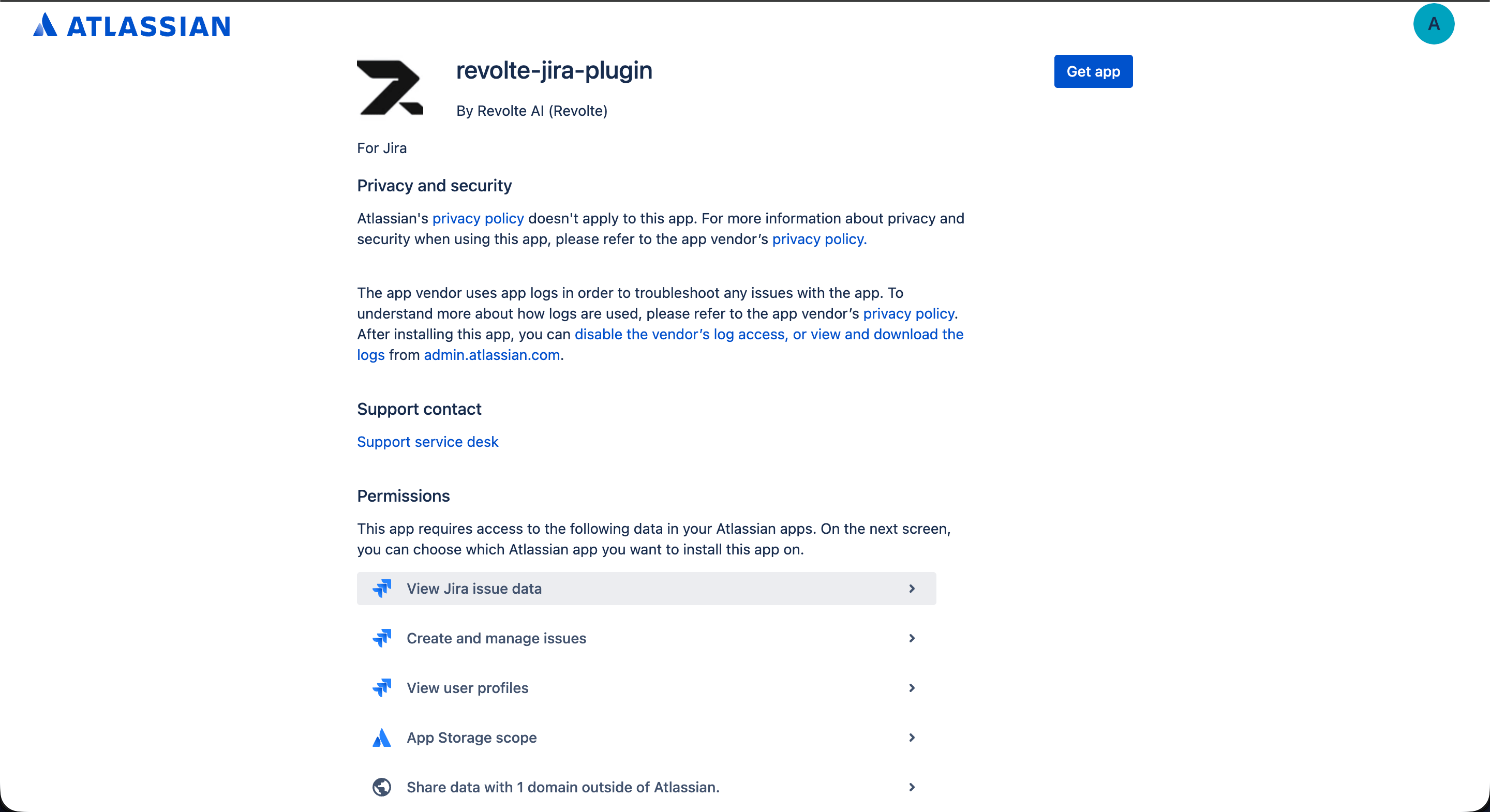
3
Accept Jira Permissions
Atlassian will ask you to confirm the OAuth grant for revolte-jira-oauth-integration. Confirm the site you want to install on, review the requested scopes, and click Accept to authorize Revolte to act on your behalf.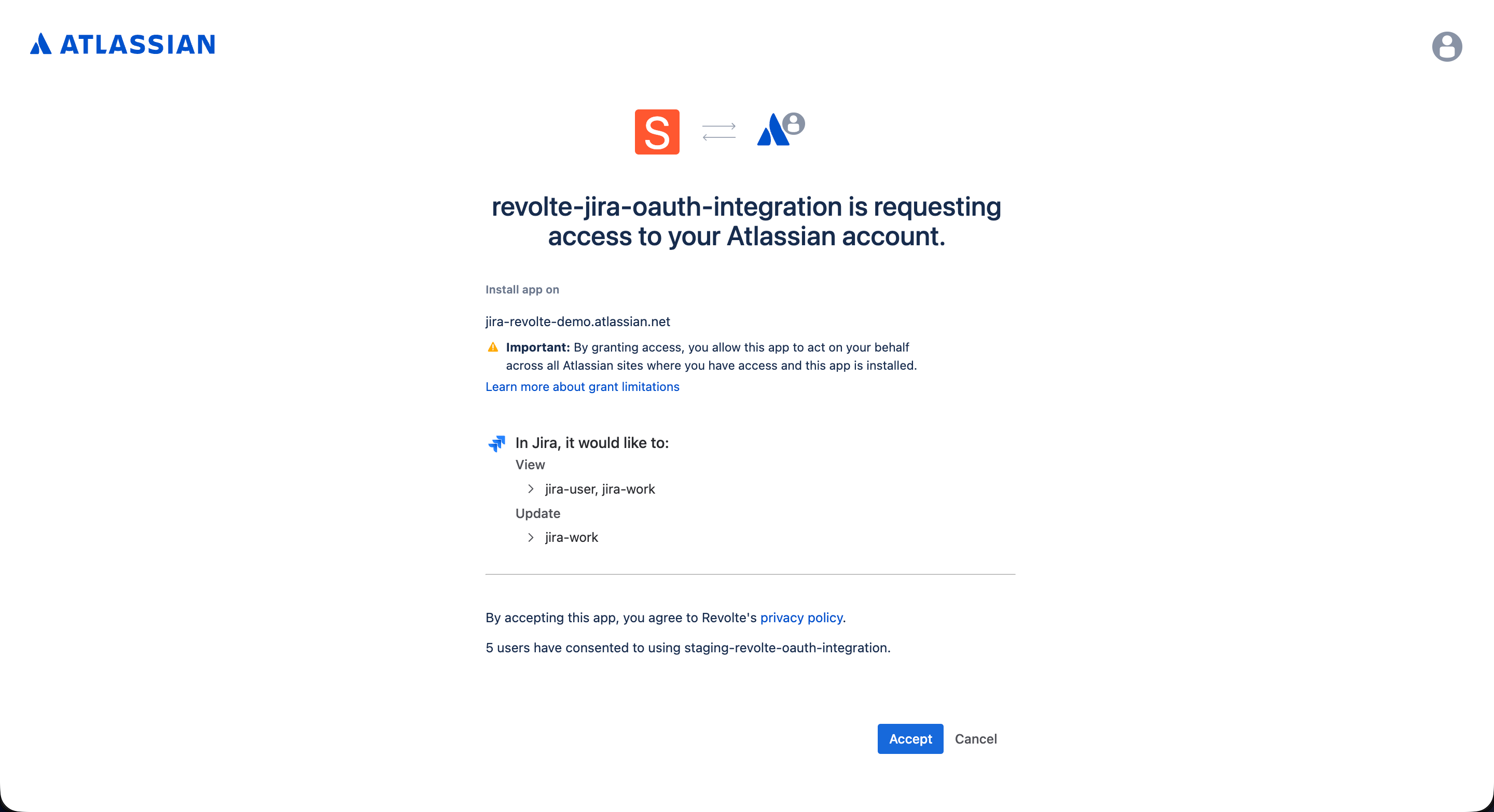
4
Install to Your Project
Select which Atlassian site you want to install the app on from the dropdown. You can repeat this step later to add Revolte to additional sites. Click Install to finish adding the app to Jira.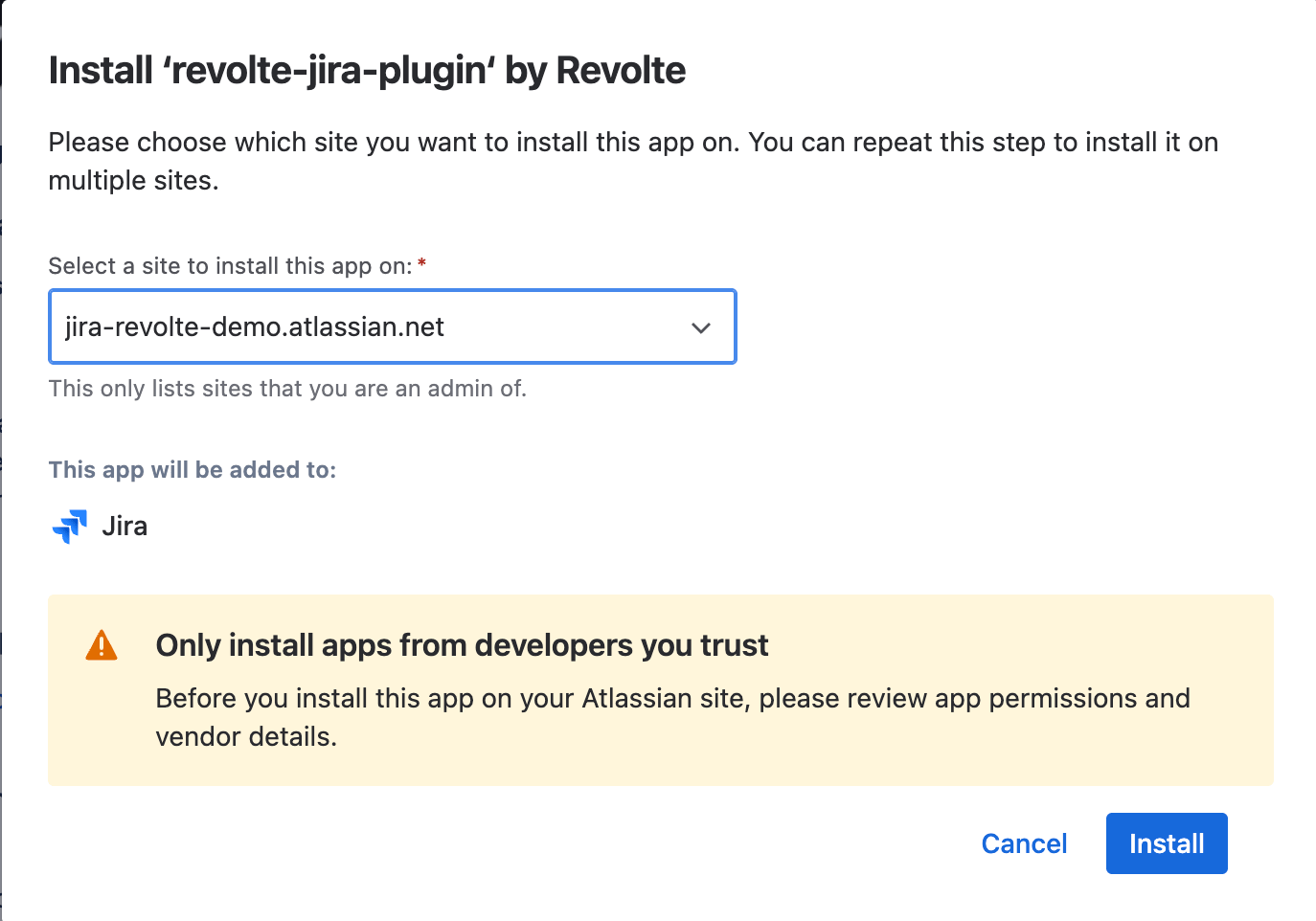
5
Confirm Jira Integration
Back in Revolte, the Jira Integration step now shows a green checkmark with Jira integrated, along with the connected site name — your Jira integration is now successful.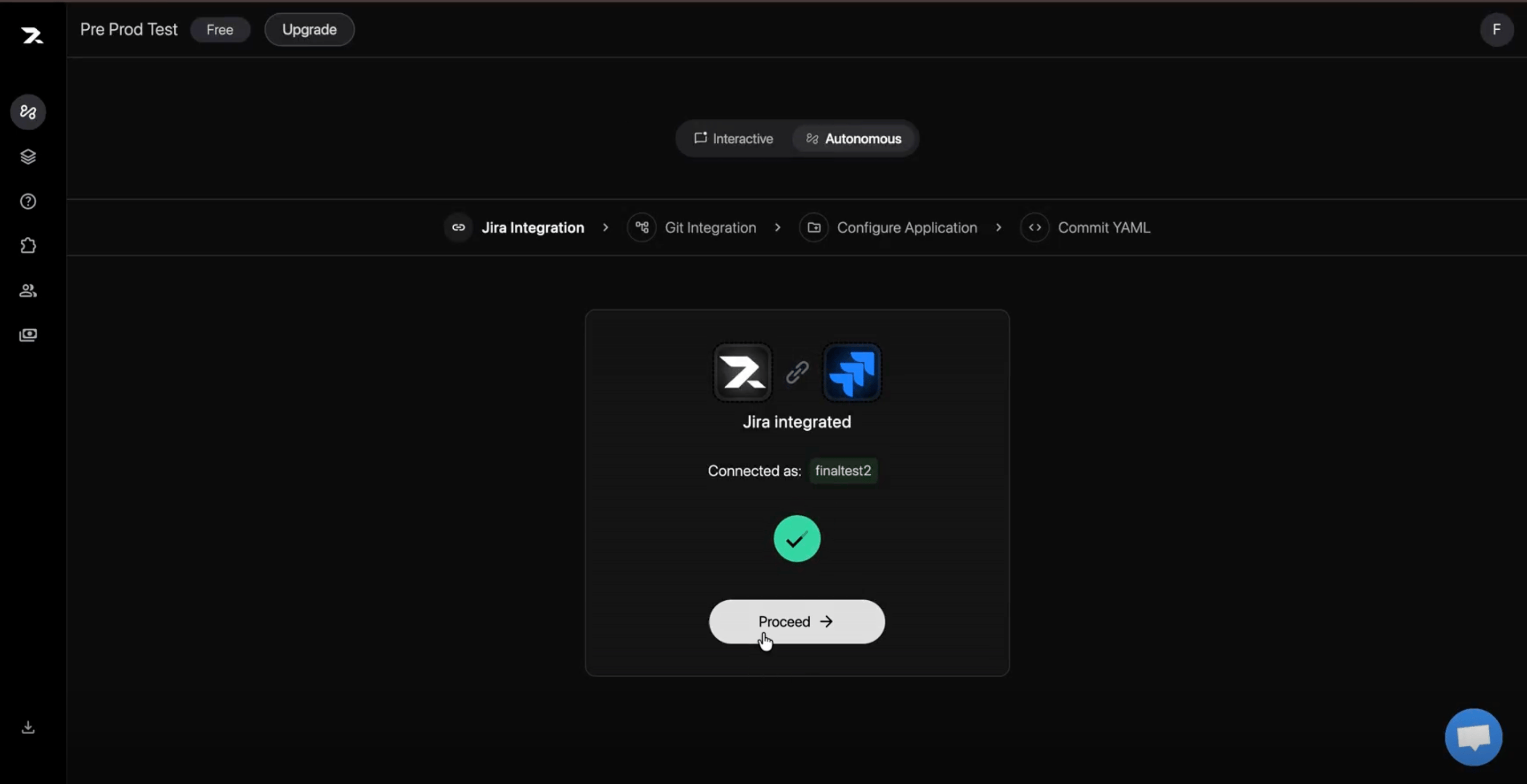
Triggering workflows from Jira
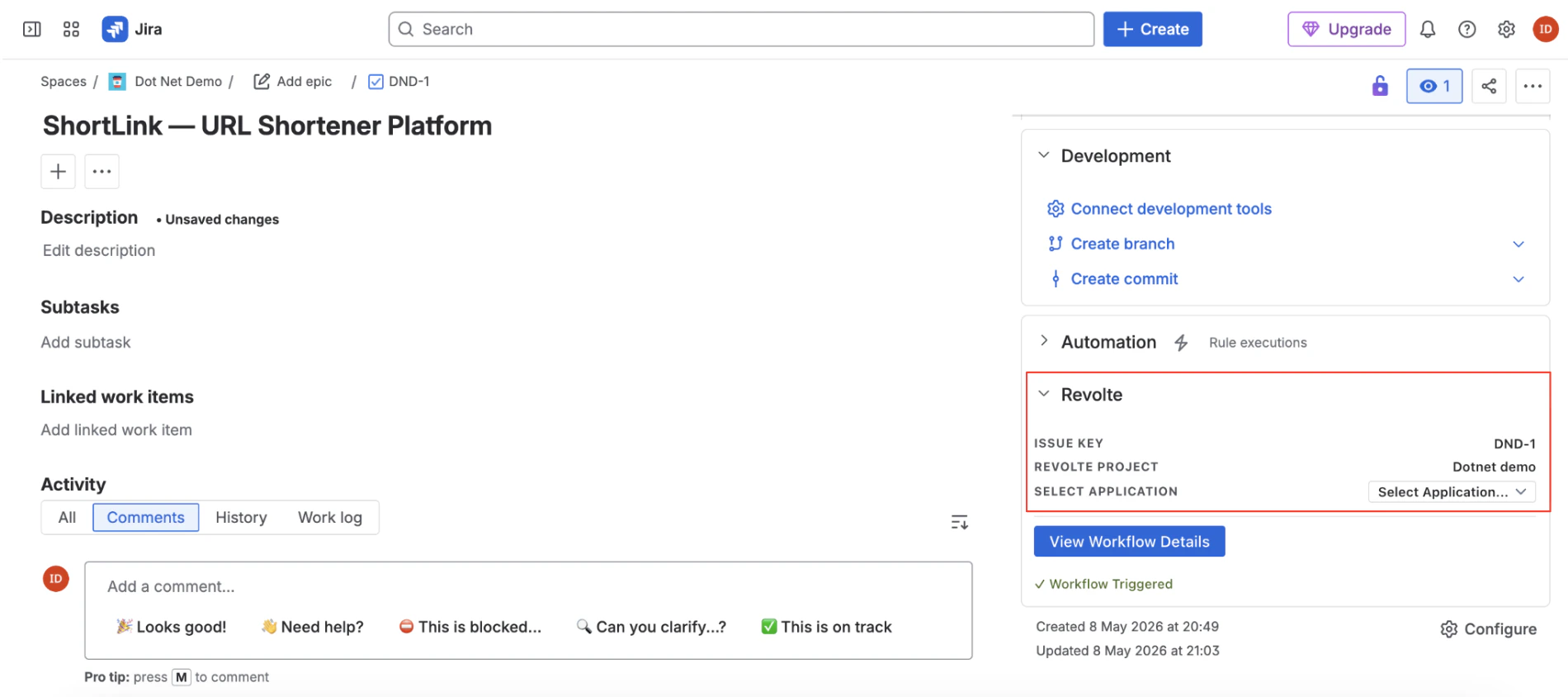
Once you install the Revolte app and map your projects, a Revolte section appears in the right sidebar of every linked Jira issue details page.Select application to trigger
- Open any linked Jira ticket.
- Locate the Revolte panel in the right sidebar.
- Under Select Application, choose the target application service from the dropdown menu.
- Once selected, the AI agent is instantly triggered to begin analyzing requirements, executing sandbox builds, and implementing code changes.
Sidebar panel elements
The sidebar panel provides full visibility and control over the execution state:- Issue Key: Displays the current Jira issue key (e.g.,
DND-1). - Revolte Project: Displays the mapped project context (e.g.,
Dotnet demo). - Select Application: A dropdown to associate the issue with a specific service and launch the development workflow.
- View Workflow Details: Action button linking directly to the Revolte dashboard. Click to view live agent execution progress, step logs, and implementation plans.
- Workflow Status: Displays real-time state feedback (e.g.,
Workflow Triggeredwith a green checkmark) once the AI agent starts executing.