> ## Documentation Index
> Fetch the complete documentation index at: https://docs.revolte.ai/llms.txt
> Use this file to discover all available pages before exploring further.
# Troubleshooting Revolte
> Recover from common account, repository, Jira, sandbox, Preview, and deployment problems in Revolte.
## Access and account verification
Revolte supports Google, GitHub, and email sign-up. Email sign-up cannot finish until the current one-time password is verified.
**Try this**
1. Return to the sign-up screen and request a new email OTP.
2. Use only the most recently issued code.
3. If a new code does not arrive or cannot be verified, email [support@revolte.ai](mailto:support@revolte.ai).
See [Account Setup & Onboarding](/get-started/account-setup) for the complete sign-up flow.
## Repository connections and configuration
Direct GitHub integration is not currently available for individual developer accounts.
**Try this**
Contact [support@revolte.ai](mailto:support@revolte.ai) for help connecting the repository. If a custom-token connection is available for your account, follow the [Personal Access Token setup guide](/integrations/repository/github#personal-access-token).
Repository setup stops when the selected branch already contains `revolte.yml`. Revolte preserves that configuration instead of creating a replacement file.
**Try this**
1. Open the application from **Projects**.
2. Select **YAML Configuration**.
3. Choose the branch containing `revolte.yml`.
4. Review and update the existing configuration in the YAML workspace.
See [Understanding Revolte YAML](/yaml/overview#understanding-revolte-yaml) for the configuration structure and available settings.
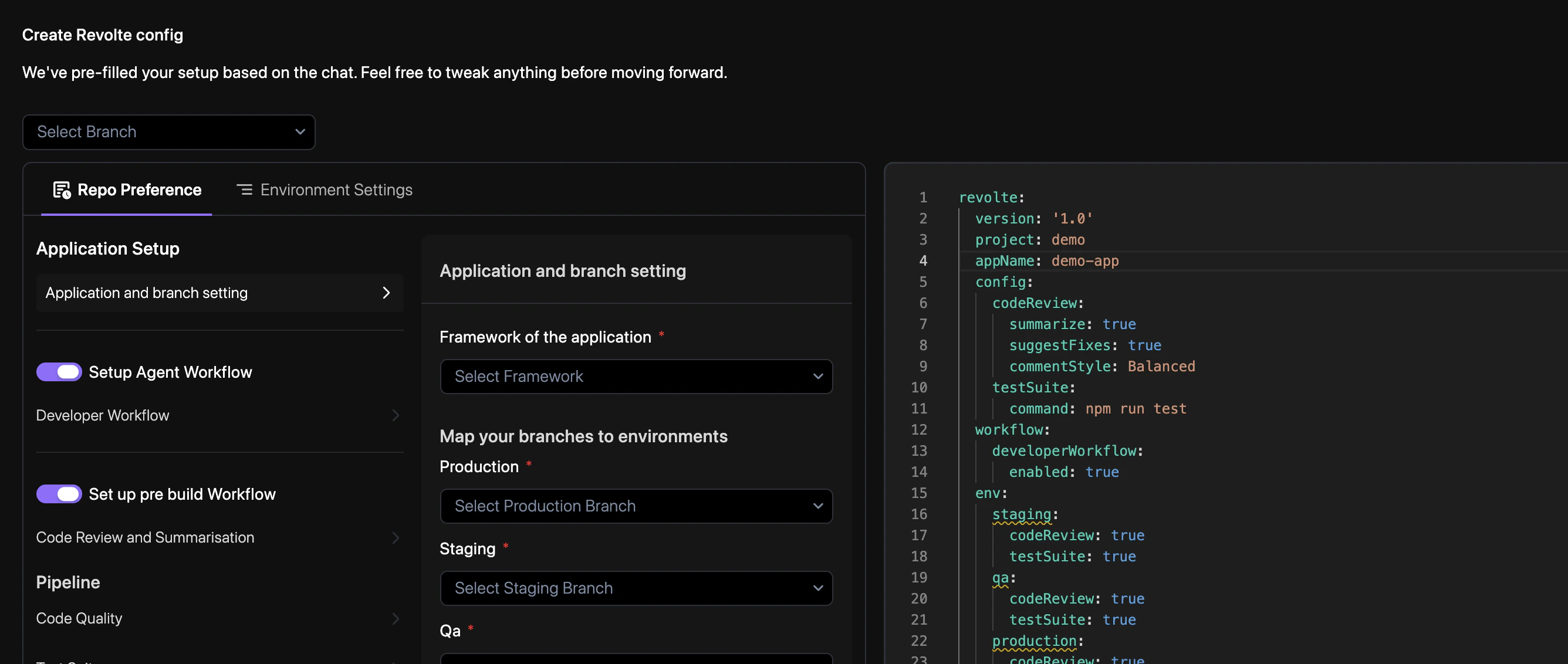 Revolte requires a repository to contain at least one branch and one committed file. A committed `README.md` provides an explicit starting point while preserving customer-owned content.
**Try this**
1. Open the repository in GitHub.
2. Create its first branch if no branch exists.
3. Add and commit `README.md`.
4. Return to Revolte and retry the connection.
A personal access token can stop working when it expires, is revoked, excludes the selected repository, or lacks a required permission.
**Try this**
1. Compare the token with the permissions listed in the [Personal Access Token setup guide](/integrations/repository/github#personal-access-token).
2. Confirm that the selected repository is included in the token's repository access.
3. Open Revolte **Settings** and use the PAT reset option to provide a replacement token.
4. If the repository source changed, use the GitHub migration option. See [Repository Migration](/integrations/repository/migration).
5. Retry the connection.
Treat a personal access token like a password. Never paste it into Chat, support email, an issue, logs, or screenshots.
## Jira workspace connections
Authorization can fail before the intended Jira site is connected when one Atlassian account has access to multiple sites.
**Try this**
1. Retry with an Atlassian account that has access only to the Jira site you want to connect.
2. If the account must retain access to multiple sites, email [support@revolte.ai](mailto:support@revolte.ai) with the intended site name.
See [Connect Jira](/integrations/project-management/jira) for the standard installation and authorization flow.
## Chat sessions and sandboxes
A Chat session can lose its sandbox connection after an inactivity timeout or a temporary browser interruption.
**Try this**
1. Select **Reconnect** when the control appears.
2. If the connection does not recover, perform a hard refresh in the browser.
3. Reopen the Chat session and confirm that the sandbox reconnects.
See [Secure Sandboxes](/get-started/sandboxes#inactivity-timeout) for lifecycle and inactivity behavior.
## Give the agent a reproducible problem
When a result is incomplete or an error persists, provide observable evidence. State the requested outcome, the actual result, the exact error, its location, and the checks already completed.
```text theme={"dark"}
Expected result:
[Describe the result that should follow the action.]
Actual result:
[Describe the visible result, including whether the page or URL changed.]
Exact error:
[Paste the complete message, or write "No error message appeared."]
Location:
[Name the page, component, route, or workflow stage.]
Checks completed:
- [First check]
- [Second check]
- [Third check]
Use this evidence to trace the failure. Compare the delivered behavior with the requested outcome, identify the incomplete implementation, apply the smallest safe correction, and verify the affected flow.
```
### Example: login remains on the same page
```text theme={"dark"}
Expected result:
After I submit valid credentials on the login page, I should reach the main dashboard.
Actual result:
The submit button briefly shows a loading state, but I remain on the login page and the URL does not change.
Exact error:
Cannot read property 'userId' of undefined
Location:
The login page, immediately after form submission.
Checks completed:
- Confirmed that the credentials are correct
- Confirmed that the form values are saved
- Reproduced the issue in another browser
```
### Collect useful evidence
1. **Capture the first error.** Copy the complete message from Revolte, Preview, the browser console, or application logs.
2. **Describe the difference.** Record the expected and actual states after the same action.
3. **Record an unresponsive action.** Name the control, the expected transition, and what remained unchanged.
4. **Send one focused request.** Use the template above to keep the investigation tied to a reproducible failure path.
## Release and deployment recovery
A failed deployment includes build or runtime context that can be returned to Chat for a targeted correction.
**Try this**
1. Open the failed deployment.
2. Select **Fix with AI**.
3. Review the deployment details transferred into Chat.
4. Apply the proposed correction and retry the deployment.
Use [Deployment Logs](/deployments/observability/deployment-logs) to follow build and runtime activity.
Deployment remains unavailable when an environment in `revolte.yml` lacks a valid branch mapping or service definition.
**Try this**
1. Open **YAML Configuration** for the application.
2. Select the branch used by the affected environment.
3. Resolve each validation message shown in the editor.
4. Save and commit the corrected configuration.
5. Return to the deployment page and retry.
See [Common YAML validation errors](/yaml/repo-preferences/common-errors#common-validation-errors) for missing branch and service-property examples.
## Building and previewing your app
Preview can continue showing an earlier version while files are still changing, the build is still running, or the editor and Preview are using different branches or sessions.
**Try this**
1. Confirm that the current change and Preview build have completed.
2. Verify that the editor and Preview use the same branch and active session.
3. Refresh Preview.
4. If it is disconnected, select **Reconnect** and perform a hard refresh if necessary.
A `404 - Page Not Found` response can appear when code changes are still in progress, the Preview build has not finished, or the requested route is not present in the generated result.
**Try this**
1. Check whether code changes or the Preview build are still in progress.
2. Wait for completion, then select **View Preview** again.
3. If the `404` remains, capture the exact URL and error message.
4. Send both to the Revolte agent and request verification that the route, page file, and navigation target satisfy the requested behavior.
A rendering failure can leave Preview blank or prevent the requested interface from appearing.
**Try this**
1. Capture the complete error shown in Preview, including the page and action that produced it.
2. Send the error to the Revolte agent without shortening or rewriting it.
3. Request a comparison between the delivered behavior and the requested outcome, followed by a focused correction.
4. Reopen **View Preview** and verify the affected page.
A request may be applied to only part of a page or to a different component than intended when the target and expected state are not specific enough.
**Try this**
1. Name the exact page and component.
2. Describe its current state and the intended state.
3. Include a screenshot or exact error when available.
4. Request a focused update that reuses the repository's existing components and design system.
Differences in layout, spacing, typography, or responsive behavior are easier to correct when they are tied to a specific frame and measurable visual details.
**Try this**
1. Confirm that Revolte can access the Figma file and intended frame.
2. Name the frame and the mismatched components.
3. Record measurable differences such as spacing, alignment, dimensions, and breakpoint behavior.
4. Request an update that uses the repository's existing components and tokens while matching the supplied design.
See [Figma to Code](/use-cases/figma-to-code) for the recommended workflow.
## Contact Revolte support
Email [support@revolte.ai](mailto:support@revolte.ai) when the workflow remains blocked. Include:
* The affected workspace and project name.
* The page or workflow stage where the problem occurred.
* The exact error and when it appeared.
* A screenshot with credentials and personal information removed.
* The recovery steps already completed.
Do not send passwords, email OTPs, GitHub personal access tokens, API keys, or other credentials.
Revolte requires a repository to contain at least one branch and one committed file. A committed `README.md` provides an explicit starting point while preserving customer-owned content.
**Try this**
1. Open the repository in GitHub.
2. Create its first branch if no branch exists.
3. Add and commit `README.md`.
4. Return to Revolte and retry the connection.
A personal access token can stop working when it expires, is revoked, excludes the selected repository, or lacks a required permission.
**Try this**
1. Compare the token with the permissions listed in the [Personal Access Token setup guide](/integrations/repository/github#personal-access-token).
2. Confirm that the selected repository is included in the token's repository access.
3. Open Revolte **Settings** and use the PAT reset option to provide a replacement token.
4. If the repository source changed, use the GitHub migration option. See [Repository Migration](/integrations/repository/migration).
5. Retry the connection.
Treat a personal access token like a password. Never paste it into Chat, support email, an issue, logs, or screenshots.
## Jira workspace connections
Authorization can fail before the intended Jira site is connected when one Atlassian account has access to multiple sites.
**Try this**
1. Retry with an Atlassian account that has access only to the Jira site you want to connect.
2. If the account must retain access to multiple sites, email [support@revolte.ai](mailto:support@revolte.ai) with the intended site name.
See [Connect Jira](/integrations/project-management/jira) for the standard installation and authorization flow.
## Chat sessions and sandboxes
A Chat session can lose its sandbox connection after an inactivity timeout or a temporary browser interruption.
**Try this**
1. Select **Reconnect** when the control appears.
2. If the connection does not recover, perform a hard refresh in the browser.
3. Reopen the Chat session and confirm that the sandbox reconnects.
See [Secure Sandboxes](/get-started/sandboxes#inactivity-timeout) for lifecycle and inactivity behavior.
## Give the agent a reproducible problem
When a result is incomplete or an error persists, provide observable evidence. State the requested outcome, the actual result, the exact error, its location, and the checks already completed.
```text theme={"dark"}
Expected result:
[Describe the result that should follow the action.]
Actual result:
[Describe the visible result, including whether the page or URL changed.]
Exact error:
[Paste the complete message, or write "No error message appeared."]
Location:
[Name the page, component, route, or workflow stage.]
Checks completed:
- [First check]
- [Second check]
- [Third check]
Use this evidence to trace the failure. Compare the delivered behavior with the requested outcome, identify the incomplete implementation, apply the smallest safe correction, and verify the affected flow.
```
### Example: login remains on the same page
```text theme={"dark"}
Expected result:
After I submit valid credentials on the login page, I should reach the main dashboard.
Actual result:
The submit button briefly shows a loading state, but I remain on the login page and the URL does not change.
Exact error:
Cannot read property 'userId' of undefined
Location:
The login page, immediately after form submission.
Checks completed:
- Confirmed that the credentials are correct
- Confirmed that the form values are saved
- Reproduced the issue in another browser
```
### Collect useful evidence
1. **Capture the first error.** Copy the complete message from Revolte, Preview, the browser console, or application logs.
2. **Describe the difference.** Record the expected and actual states after the same action.
3. **Record an unresponsive action.** Name the control, the expected transition, and what remained unchanged.
4. **Send one focused request.** Use the template above to keep the investigation tied to a reproducible failure path.
## Release and deployment recovery
A failed deployment includes build or runtime context that can be returned to Chat for a targeted correction.
**Try this**
1. Open the failed deployment.
2. Select **Fix with AI**.
3. Review the deployment details transferred into Chat.
4. Apply the proposed correction and retry the deployment.
Use [Deployment Logs](/deployments/observability/deployment-logs) to follow build and runtime activity.
Deployment remains unavailable when an environment in `revolte.yml` lacks a valid branch mapping or service definition.
**Try this**
1. Open **YAML Configuration** for the application.
2. Select the branch used by the affected environment.
3. Resolve each validation message shown in the editor.
4. Save and commit the corrected configuration.
5. Return to the deployment page and retry.
See [Common YAML validation errors](/yaml/repo-preferences/common-errors#common-validation-errors) for missing branch and service-property examples.
## Building and previewing your app
Preview can continue showing an earlier version while files are still changing, the build is still running, or the editor and Preview are using different branches or sessions.
**Try this**
1. Confirm that the current change and Preview build have completed.
2. Verify that the editor and Preview use the same branch and active session.
3. Refresh Preview.
4. If it is disconnected, select **Reconnect** and perform a hard refresh if necessary.
A `404 - Page Not Found` response can appear when code changes are still in progress, the Preview build has not finished, or the requested route is not present in the generated result.
**Try this**
1. Check whether code changes or the Preview build are still in progress.
2. Wait for completion, then select **View Preview** again.
3. If the `404` remains, capture the exact URL and error message.
4. Send both to the Revolte agent and request verification that the route, page file, and navigation target satisfy the requested behavior.
A rendering failure can leave Preview blank or prevent the requested interface from appearing.
**Try this**
1. Capture the complete error shown in Preview, including the page and action that produced it.
2. Send the error to the Revolte agent without shortening or rewriting it.
3. Request a comparison between the delivered behavior and the requested outcome, followed by a focused correction.
4. Reopen **View Preview** and verify the affected page.
A request may be applied to only part of a page or to a different component than intended when the target and expected state are not specific enough.
**Try this**
1. Name the exact page and component.
2. Describe its current state and the intended state.
3. Include a screenshot or exact error when available.
4. Request a focused update that reuses the repository's existing components and design system.
Differences in layout, spacing, typography, or responsive behavior are easier to correct when they are tied to a specific frame and measurable visual details.
**Try this**
1. Confirm that Revolte can access the Figma file and intended frame.
2. Name the frame and the mismatched components.
3. Record measurable differences such as spacing, alignment, dimensions, and breakpoint behavior.
4. Request an update that uses the repository's existing components and tokens while matching the supplied design.
See [Figma to Code](/use-cases/figma-to-code) for the recommended workflow.
## Contact Revolte support
Email [support@revolte.ai](mailto:support@revolte.ai) when the workflow remains blocked. Include:
* The affected workspace and project name.
* The page or workflow stage where the problem occurred.
* The exact error and when it appeared.
* A screenshot with credentials and personal information removed.
* The recovery steps already completed.
Do not send passwords, email OTPs, GitHub personal access tokens, API keys, or other credentials.