> ## Documentation Index
> Fetch the complete documentation index at: https://docs.revolte.ai/llms.txt
> Use this file to discover all available pages before exploring further.
# Connect Jira
> Connect your Jira projects to Revolte for automated ticket updates.
## Configuration
Revolte offers two ways to connect your Jira workspace: either during the initial onboarding flow or directly from the application workspace settings.
Configure your Jira integration during your initial workspace setup sequence.
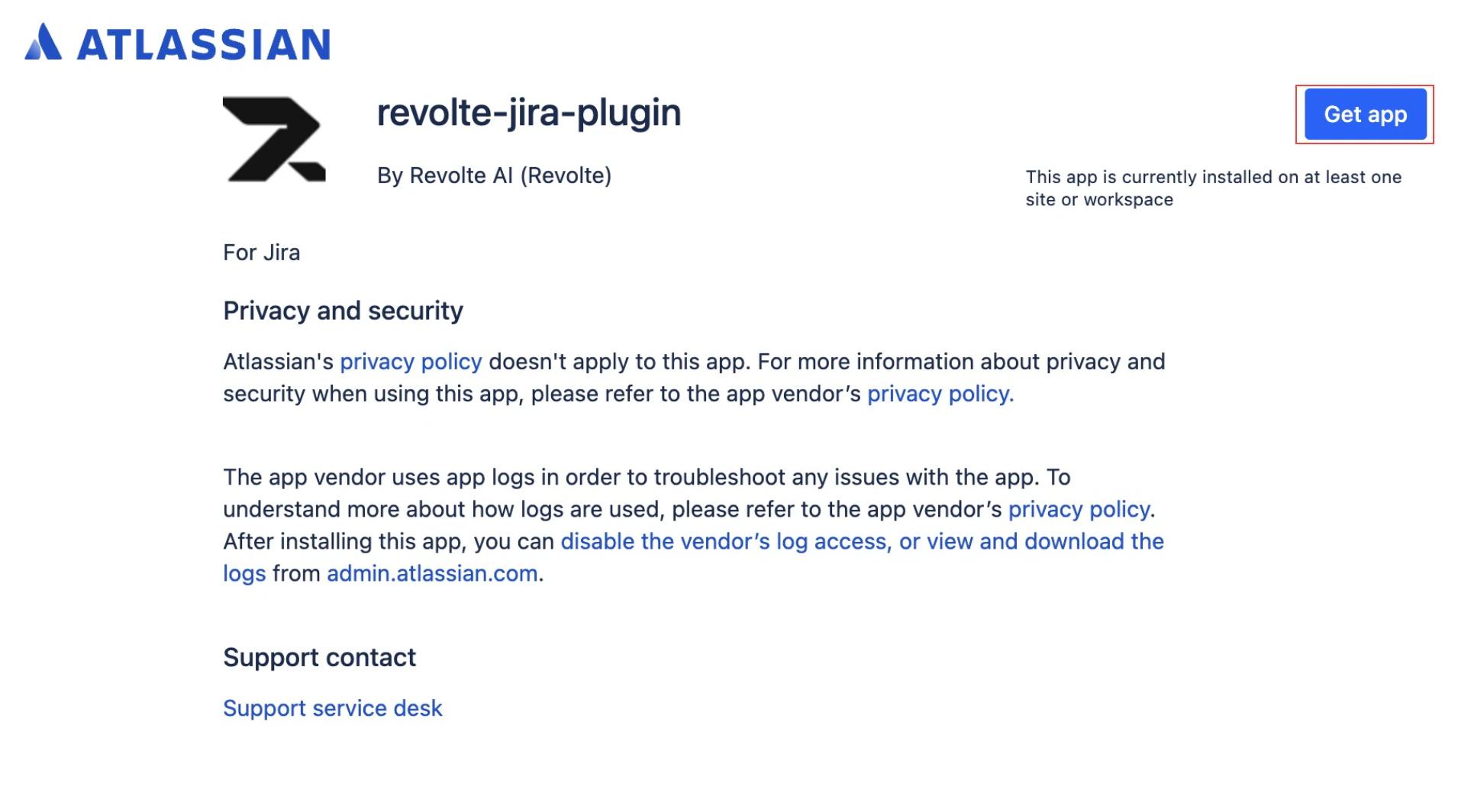
Install the Revolte app from the Atlassian Marketplace and connect your Revolte workspace to your Jira site.
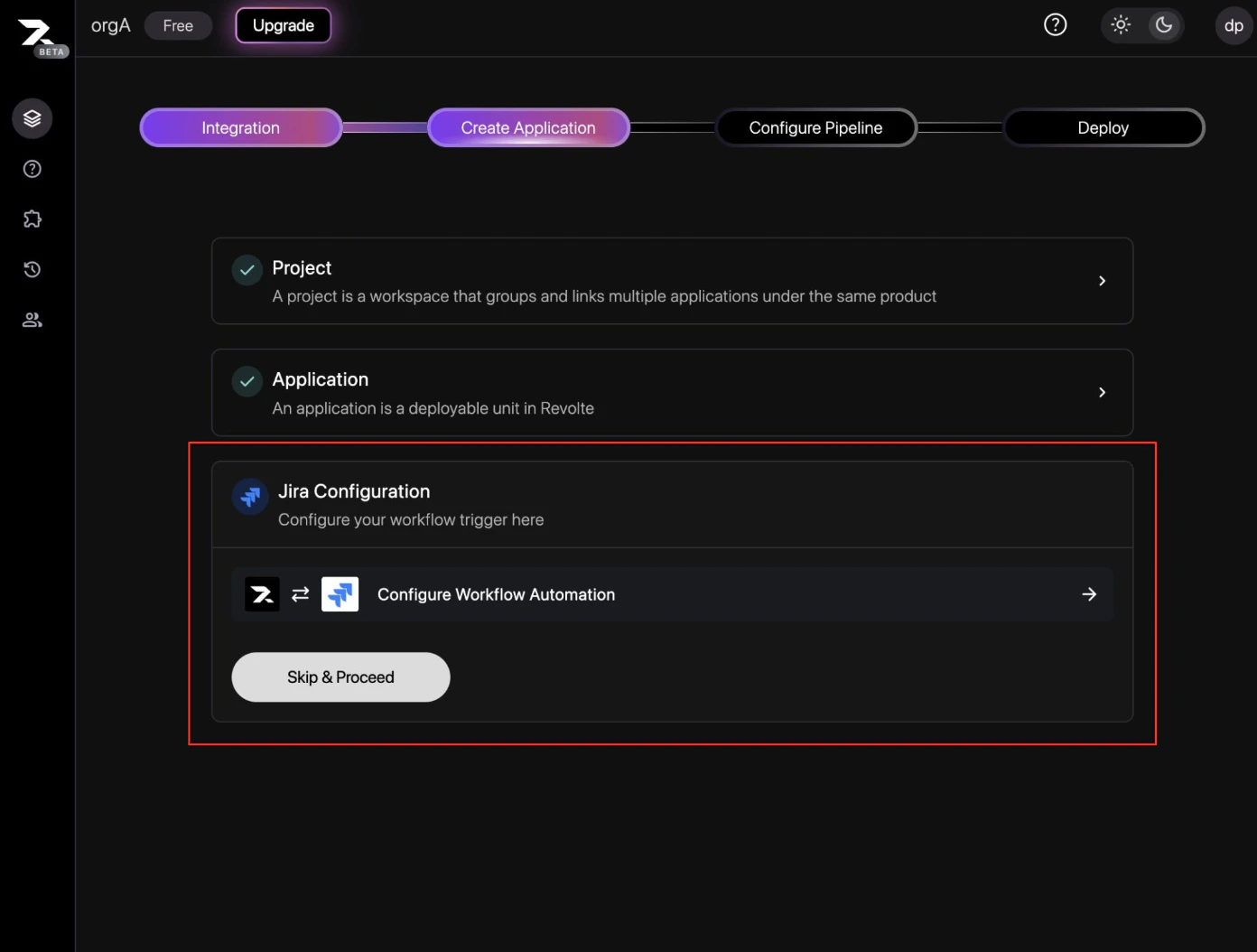 Map your Revolte projects to your corresponding Jira projects to finalize the integration.
 Connect Jira to an active workspace at any time directly from the settings panel.
From the Revolte dashboard left sidebar, click **Extensions** (or navigate to your sidebar integrations menu).
Locate the **Project Management** category and click on **Jira**.
Follow the same onboarding setup sequence (install from Marketplace, connect your workspace, and map your projects) as shown in the onboarding tab. Once connected, you can begin [Triggering Workflows from Jira](/integrations/project-management/jira#triggering-workflows-from-jira).
## Triggering workflows from Jira
Once you install the Revolte app and map your projects, a **Revolte** section appears in the right sidebar of every linked Jira issue details page.
### Select application to trigger
Connect Jira to an active workspace at any time directly from the settings panel.
From the Revolte dashboard left sidebar, click **Extensions** (or navigate to your sidebar integrations menu).
Locate the **Project Management** category and click on **Jira**.
Follow the same onboarding setup sequence (install from Marketplace, connect your workspace, and map your projects) as shown in the onboarding tab. Once connected, you can begin [Triggering Workflows from Jira](/integrations/project-management/jira#triggering-workflows-from-jira).
## Triggering workflows from Jira
Once you install the Revolte app and map your projects, a **Revolte** section appears in the right sidebar of every linked Jira issue details page.
### Select application to trigger
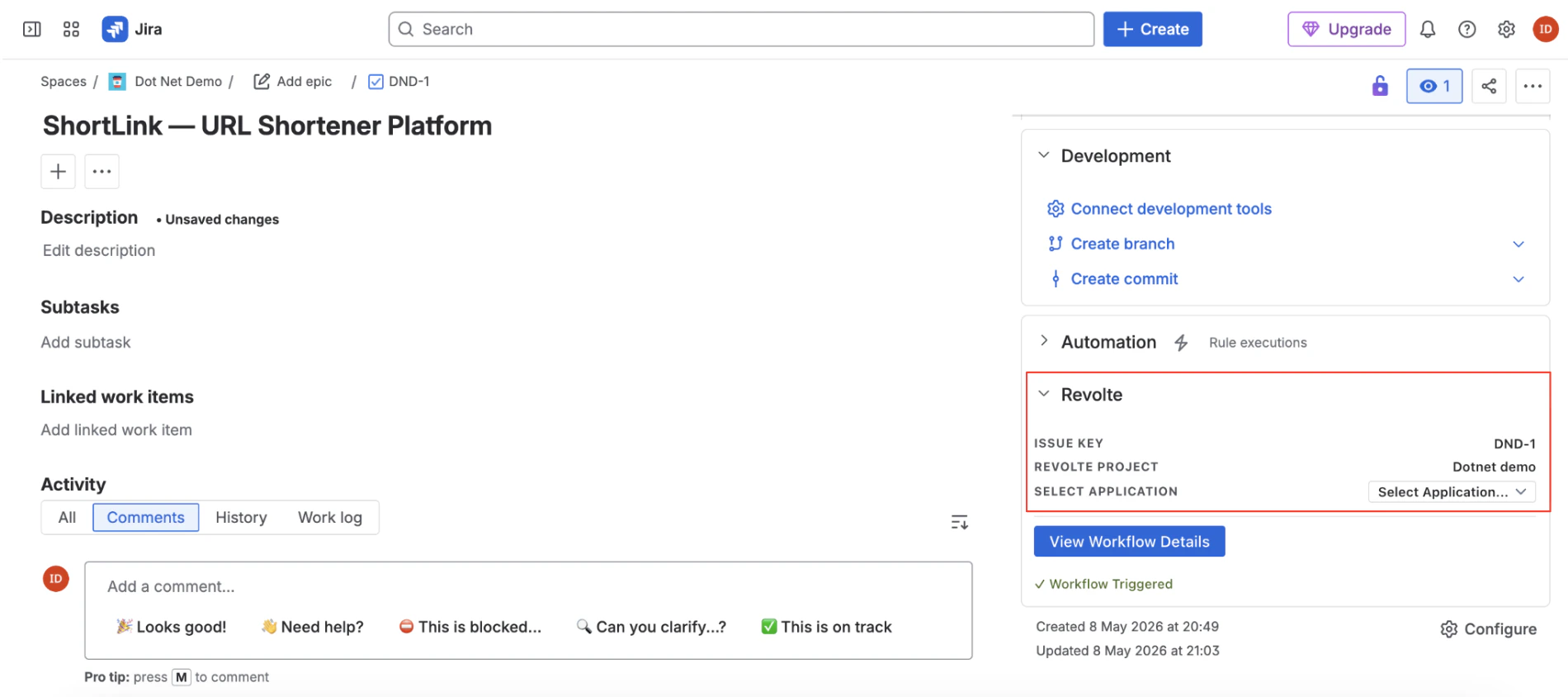 To trigger a development workflow for a specific application:
1. Open any linked Jira ticket.
2. Locate the **Revolte** panel in the right sidebar.
3. Under **Select Application**, choose the target application service from the dropdown menu.
4. Once selected, the AI agent is instantly triggered to begin analyzing requirements, executing sandbox builds, and implementing code changes.
### Sidebar panel elements
The sidebar panel provides full visibility and control over the execution state:
* **Issue Key**: Displays the current Jira issue key (e.g., `DND-1`).
* **Revolte Project**: Displays the mapped project context (e.g., `Dotnet demo`).
* **Select Application**: A dropdown to associate the issue with a specific service and launch the development workflow.
* **View Workflow Details**: Action button linking directly to the Revolte dashboard. Click to view live agent execution progress, step logs, and implementation plans.
* **Workflow Status**: Displays real-time state feedback (e.g., `Workflow Triggered` with a green checkmark) once the AI agent starts executing.
***
## Quick links
* [AI Workflows](/ai-workflows/overview)
* [Deployments Overview](/deployments/services/overview)
* [Repository Integration](/integrations/repository/github)
To trigger a development workflow for a specific application:
1. Open any linked Jira ticket.
2. Locate the **Revolte** panel in the right sidebar.
3. Under **Select Application**, choose the target application service from the dropdown menu.
4. Once selected, the AI agent is instantly triggered to begin analyzing requirements, executing sandbox builds, and implementing code changes.
### Sidebar panel elements
The sidebar panel provides full visibility and control over the execution state:
* **Issue Key**: Displays the current Jira issue key (e.g., `DND-1`).
* **Revolte Project**: Displays the mapped project context (e.g., `Dotnet demo`).
* **Select Application**: A dropdown to associate the issue with a specific service and launch the development workflow.
* **View Workflow Details**: Action button linking directly to the Revolte dashboard. Click to view live agent execution progress, step logs, and implementation plans.
* **Workflow Status**: Displays real-time state feedback (e.g., `Workflow Triggered` with a green checkmark) once the AI agent starts executing.
***
## Quick links
* [AI Workflows](/ai-workflows/overview)
* [Deployments Overview](/deployments/services/overview)
* [Repository Integration](/integrations/repository/github)