> ## Documentation Index
> Fetch the complete documentation index at: https://docs.revolte.ai/llms.txt
> Use this file to discover all available pages before exploring further.
# Build Your First App with Interactive Chat
> Go beyond vibe coding and shape a reviewable, production-ready change in under five minutes.
No perfect prompt or prepared repository required—start with an idea and follow six guided steps.
Need more guidance? The detailed [Build an App with Interactive Chat](/workflows/chat-feature) guide shows every screen and explains each action step by step.
**New to Revolte?** Start with a new application and connect a repository later. If you already have a codebase, connect it first so Revolte can follow its existing structure and patterns.
Immediately after your first sign-up, Revolte opens this **Interactive** chat screen. You are ready when the prompt box appears. To work with an existing codebase, select **Connect** under **Connect your existing application**; otherwise, start with a prompt and connect a repository later.
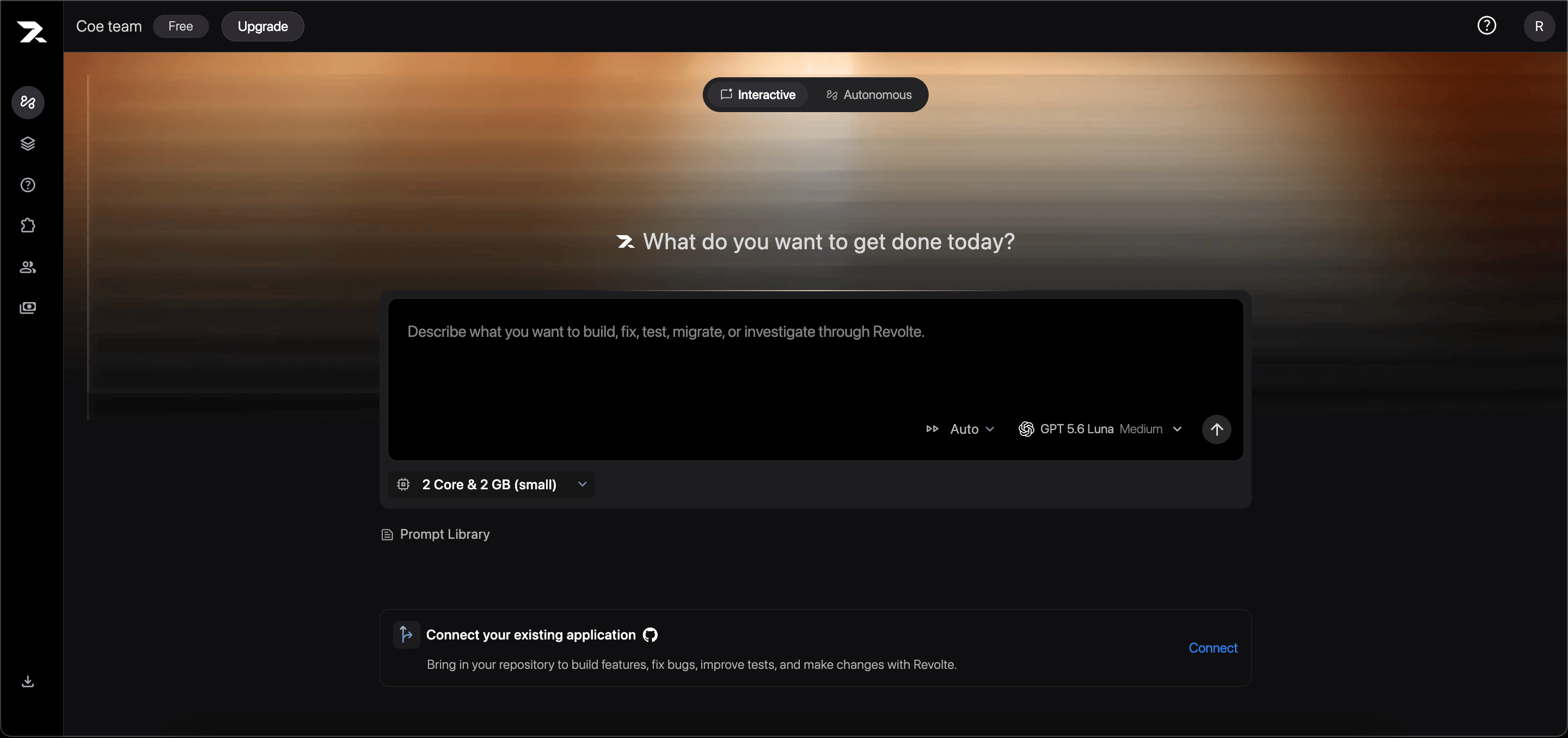 Working with an existing application? Go to **All Projects → Create Project** and connect its repository before starting the chat.
Write your request as if you were explaining the task to a teammate. A few clear sentences are enough: describe the outcome, mention important constraints, and say what a successful result should include.
```text theme={"dark"}
Add a forgot-password flow that follows the existing authentication patterns.
Cover successful resets and invalid tokens, and preserve the current visual style.
```
Not sure how to phrase it? Choose an example from the [Prompt Library](/get-started/prompt-library) and adapt it to your goal.
Select a model, then choose a sandbox size. A smaller sandbox suits focused changes; larger builds, dependency installation, and test suites may need more resources.
Working with an existing application? Go to **All Projects → Create Project** and connect its repository before starting the chat.
Write your request as if you were explaining the task to a teammate. A few clear sentences are enough: describe the outcome, mention important constraints, and say what a successful result should include.
```text theme={"dark"}
Add a forgot-password flow that follows the existing authentication patterns.
Cover successful resets and invalid tokens, and preserve the current visual style.
```
Not sure how to phrase it? Choose an example from the [Prompt Library](/get-started/prompt-library) and adapt it to your goal.
Select a model, then choose a sandbox size. A smaller sandbox suits focused changes; larger builds, dependency installation, and test suites may need more resources.
 The sandbox keeps this work separate from your local machine. Learn more in [Sandbox Environments](/get-started/sandboxes).
Submit the prompt and wait for the sandbox to become active. Revolte may ask a focused question before changing more code. Choose a suggested answer or respond in your own words.
The sandbox keeps this work separate from your local machine. Learn more in [Sandbox Environments](/get-started/sandboxes).
Submit the prompt and wait for the sandbox to become active. Revolte may ask a focused question before changing more code. Choose a suggested answer or respond in your own words.
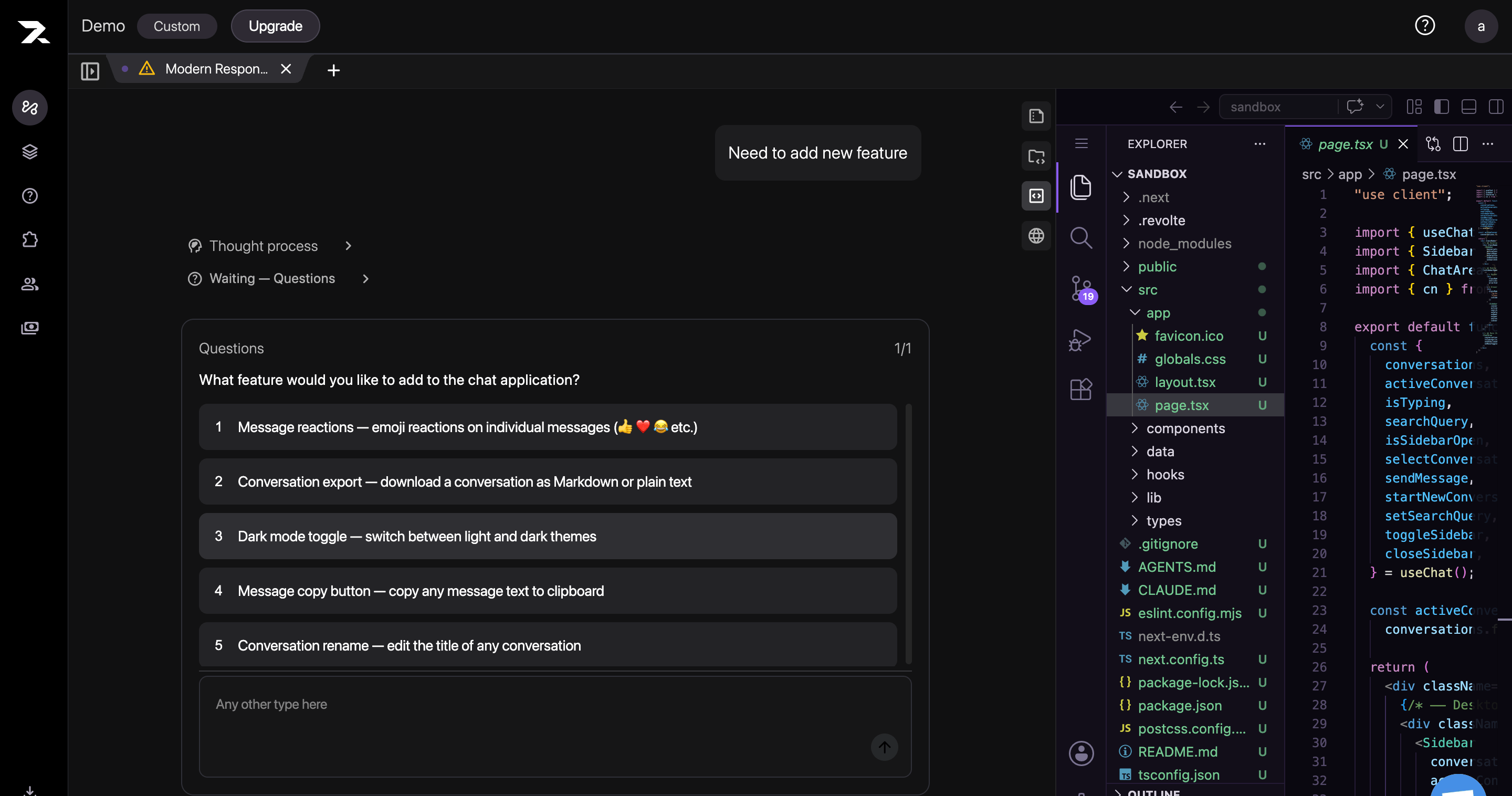 It is okay if your first prompt was incomplete—the conversation is where you refine the result together.
Follow the progress in chat without needing to understand every command. When you are ready, use these views to check the work in plain sight:
It is okay if your first prompt was incomplete—the conversation is where you refine the result together.
Follow the progress in chat without needing to understand every command. When you are ready, use these views to check the work in plain sight:
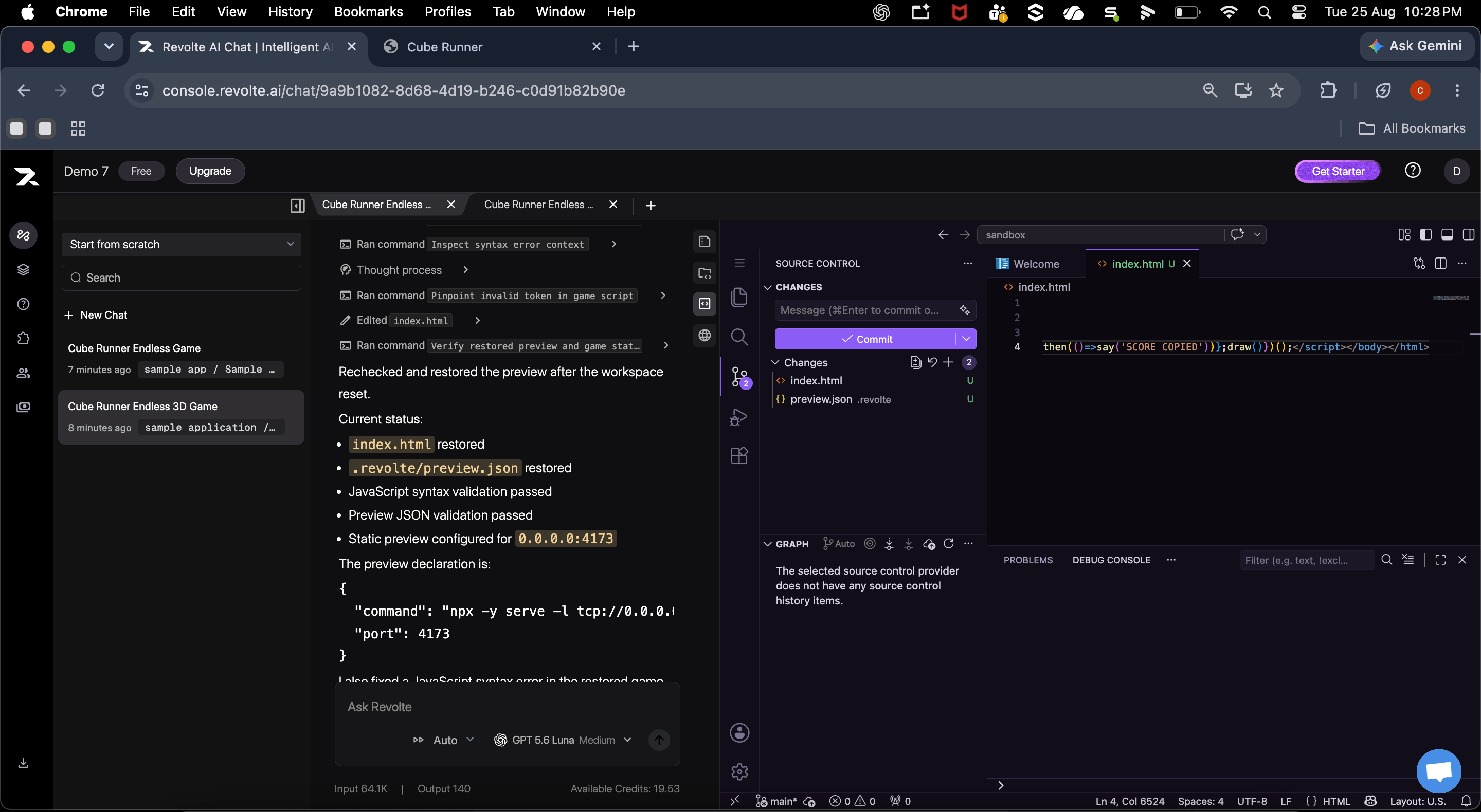 * **Look at the files.** Open **Code** to see what Revolte created or changed. You can edit any file yourself.
* **Review what changed.** Open **Diff** to compare the previous code with the new version and spot anything unexpected.
* **Try the app.** Open **Live Preview** to use the running application. The preview refreshes as changes are made.
#### What happens before your review
Before the work reaches your repository, Revolte takes it through five clear stages:
1. **Understand your request.** Revolte turns your message and follow-up answers into clear requirements.
2. **Learn the codebase.** It identifies the existing structure and patterns to follow.
3. **Build the change.** It creates or updates the files needed for your request.
4. **Run checks.** It tests the relevant behavior and reports any issues it finds.
5. **Prepare for your review.** The files, comparison view, and live app are ready for you to inspect.
If you started without a repository, [connect GitHub](/integrations/repository/github) before continuing.
When the result looks right, open the **Commit** panel and review the changed files one final time. Enter a clear commit message, then select **Commit and Push**.
* **Look at the files.** Open **Code** to see what Revolte created or changed. You can edit any file yourself.
* **Review what changed.** Open **Diff** to compare the previous code with the new version and spot anything unexpected.
* **Try the app.** Open **Live Preview** to use the running application. The preview refreshes as changes are made.
#### What happens before your review
Before the work reaches your repository, Revolte takes it through five clear stages:
1. **Understand your request.** Revolte turns your message and follow-up answers into clear requirements.
2. **Learn the codebase.** It identifies the existing structure and patterns to follow.
3. **Build the change.** It creates or updates the files needed for your request.
4. **Run checks.** It tests the relevant behavior and reports any issues it finds.
5. **Prepare for your review.** The files, comparison view, and live app are ready for you to inspect.
If you started without a repository, [connect GitHub](/integrations/repository/github) before continuing.
When the result looks right, open the **Commit** panel and review the changed files one final time. Enter a clear commit message, then select **Commit and Push**.
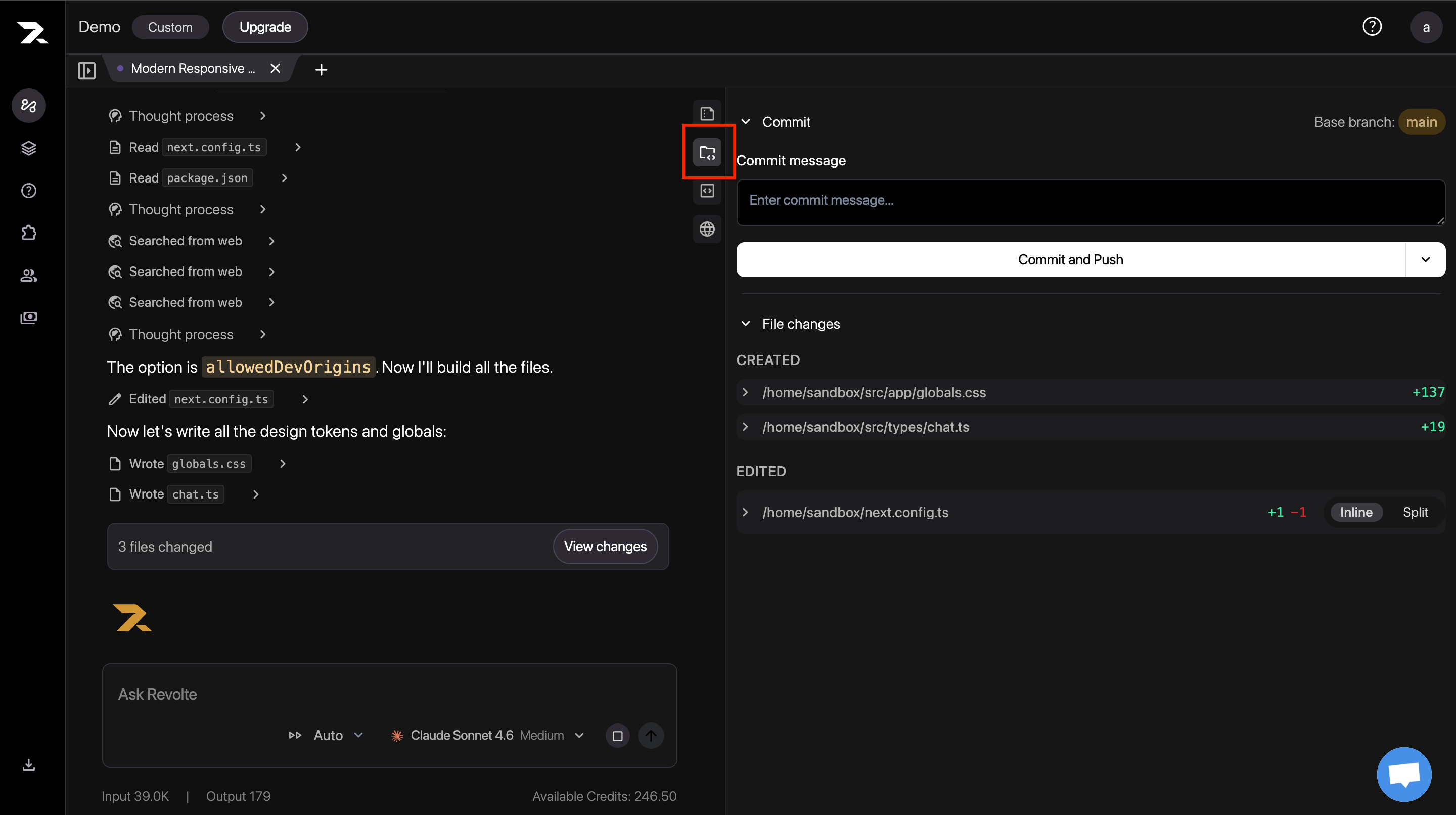 If your repository workflow creates a pull request, share it with your team for review before merging.
✓ **Your first change is ready.** Review the pull request with your team, then use the deployment preview to validate the change live before merging.
## Next steps
Generate deployment configuration, commit it, and launch a managed Preview environment from your completed Chat work.
* [See every Interactive Chat screen](/workflows/chat-feature)
* [Find a prompt for your next task](/get-started/prompt-library)
* [Learn how your sandbox works](/get-started/sandboxes)
If your repository workflow creates a pull request, share it with your team for review before merging.
✓ **Your first change is ready.** Review the pull request with your team, then use the deployment preview to validate the change live before merging.
## Next steps
Generate deployment configuration, commit it, and launch a managed Preview environment from your completed Chat work.
* [See every Interactive Chat screen](/workflows/chat-feature)
* [Find a prompt for your next task](/get-started/prompt-library)
* [Learn how your sandbox works](/get-started/sandboxes)