> ## Documentation Index
> Fetch the complete documentation index at: https://docs.revolte.ai/llms.txt
> Use this file to discover all available pages before exploring further.
# Deploy from Interactive Chat
> Generate deployment configuration in Chat, commit it, and launch a Preview environment.
Move an application from an active Interactive Chat sandbox into a managed Revolte Preview environment.
This flow is for an existing application with a connected repository and a preconfigured cloud provider. If cloud access is not configured, connect a provider before launching the deployment.
When the application is ready to test outside the chat sandbox, click **View Preview**. If GitHub is not connected, connect it through the [GitHub repository integration](/integrations/repository/github) before continuing. If the repository does not have deployment configuration yet, select **Generate `revolte.yml` configuration file**.
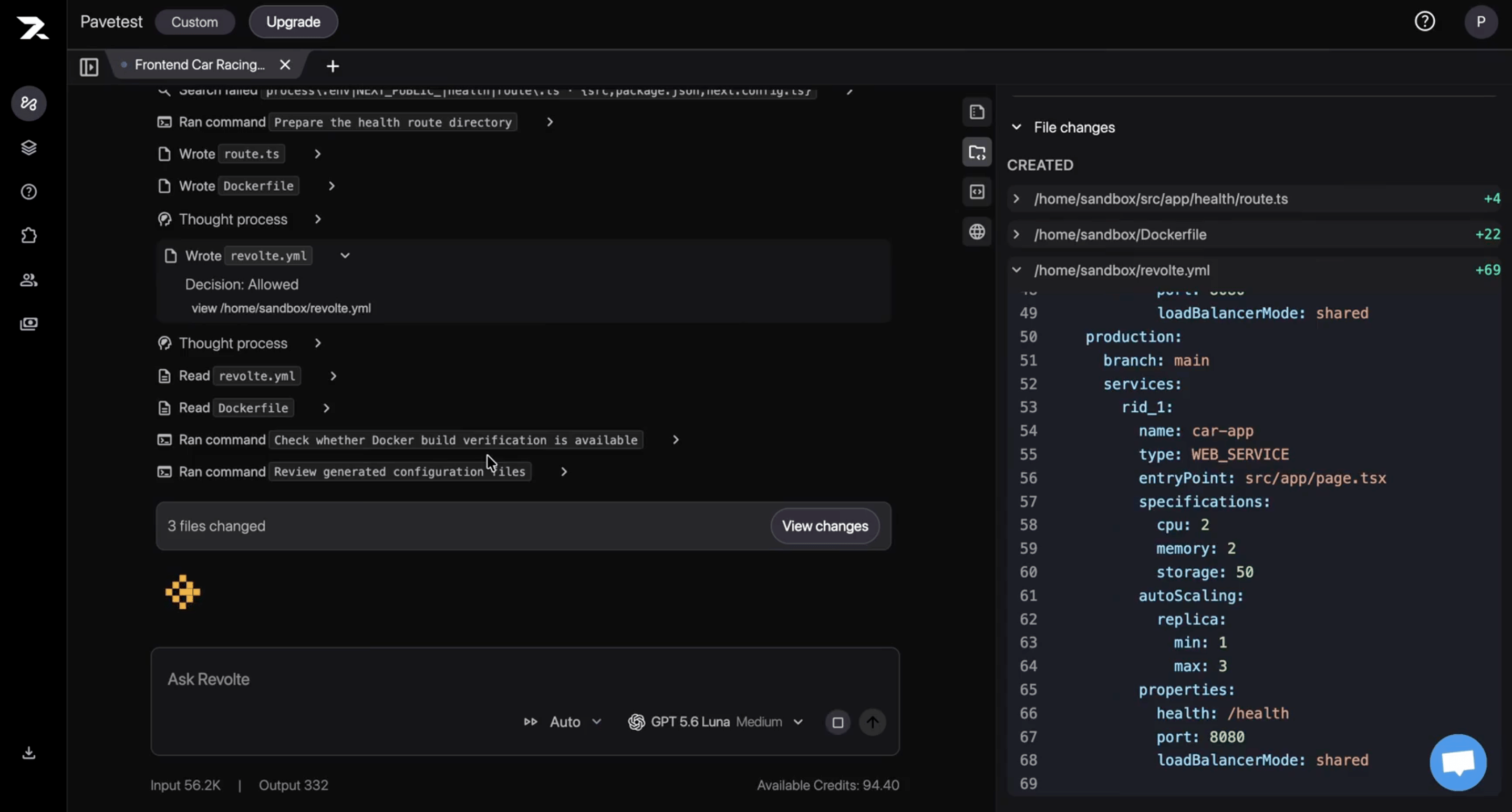
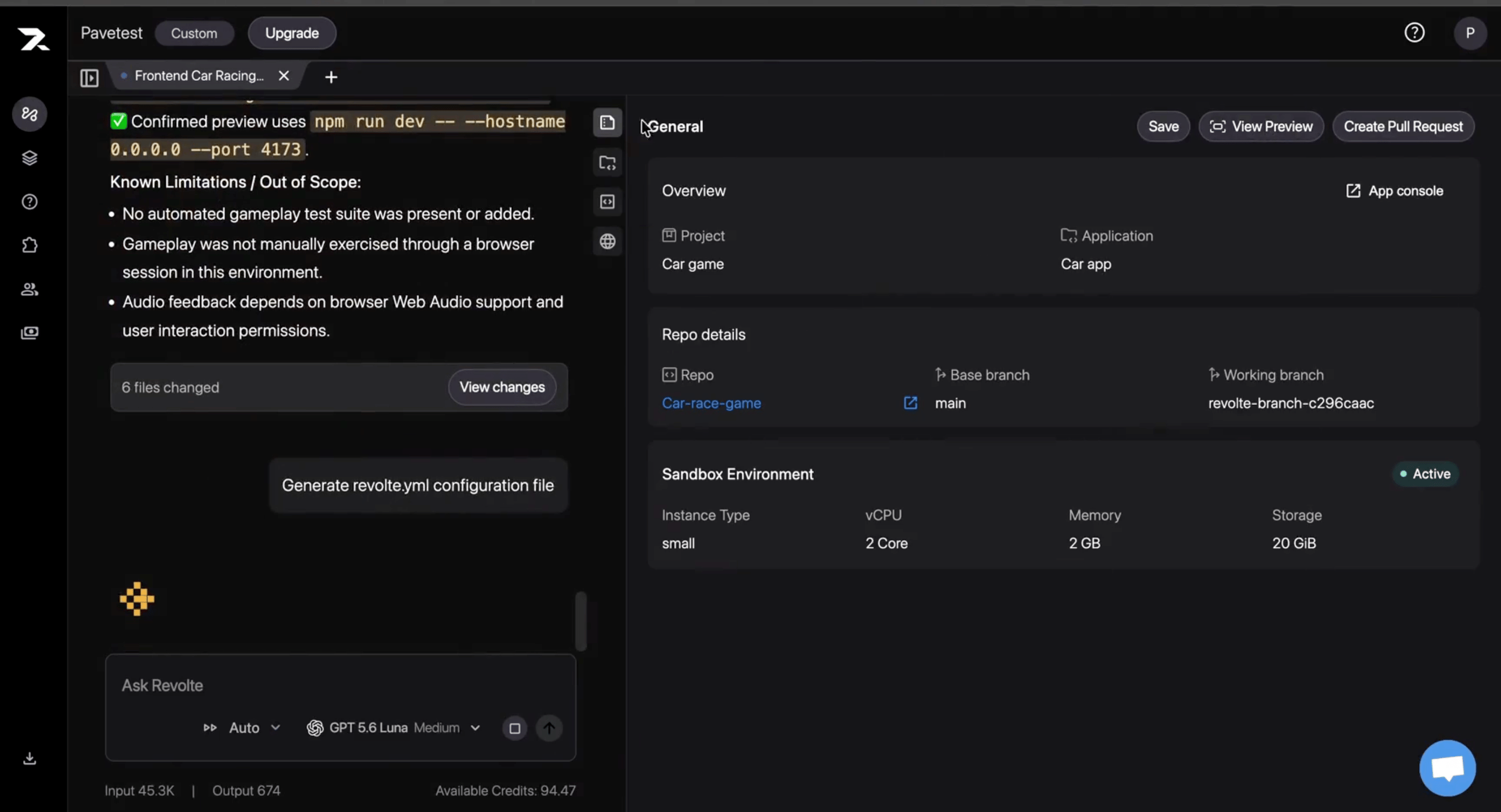 Revolte analyzes the application and prepares the files required for deployment. Depending on the application, these can include:
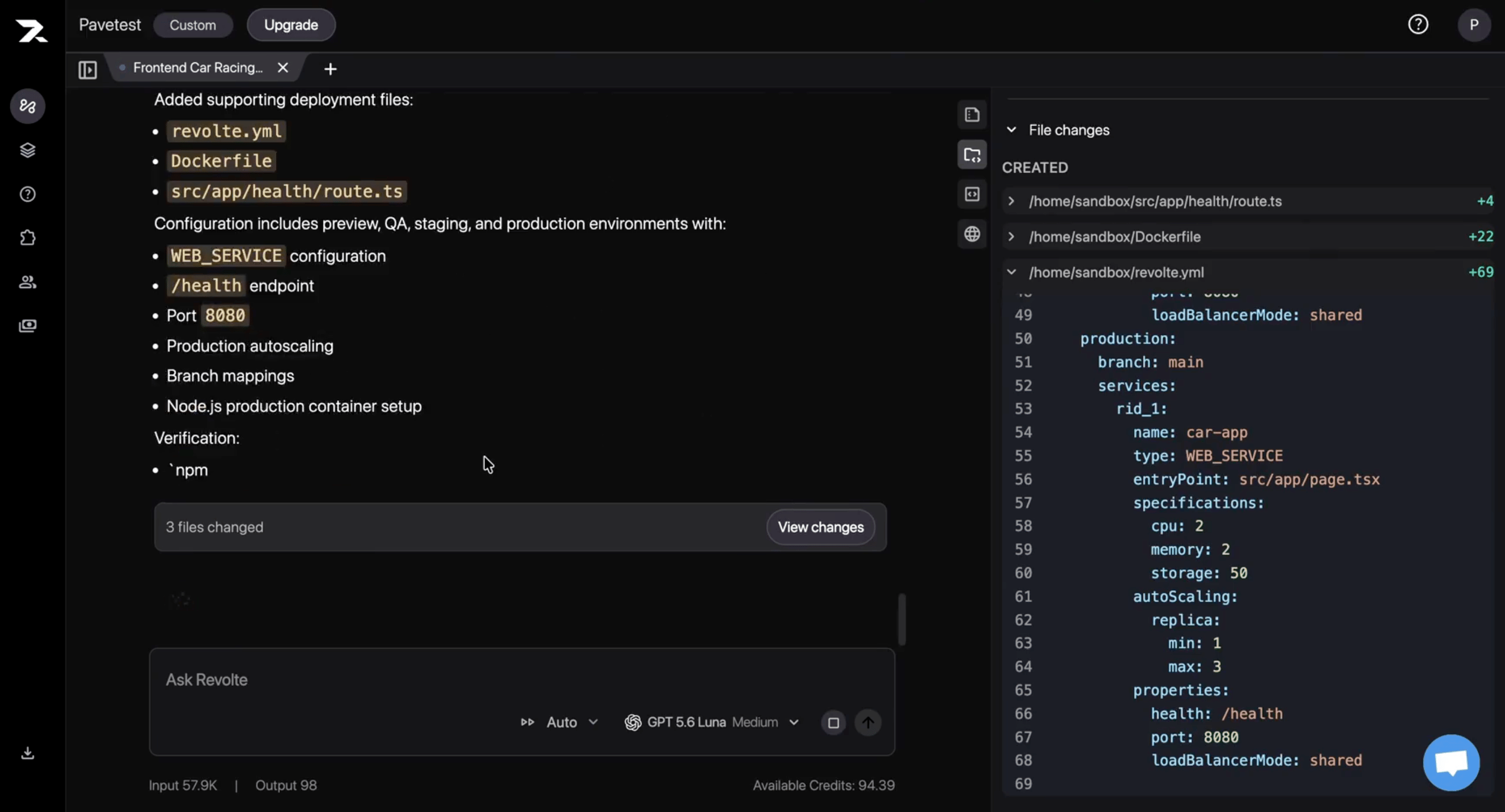
* `revolte.yml` for environments, services, resources, branches, and scaling
* A `Dockerfile` for the production runtime
* A health-check endpoint used during deployment
Review every generated file under **File changes** before continuing.
Revolte analyzes the application and prepares the files required for deployment. Depending on the application, these can include:
* `revolte.yml` for environments, services, resources, branches, and scaling
* A `Dockerfile` for the production runtime
* A health-check endpoint used during deployment
Review every generated file under **File changes** before continuing.
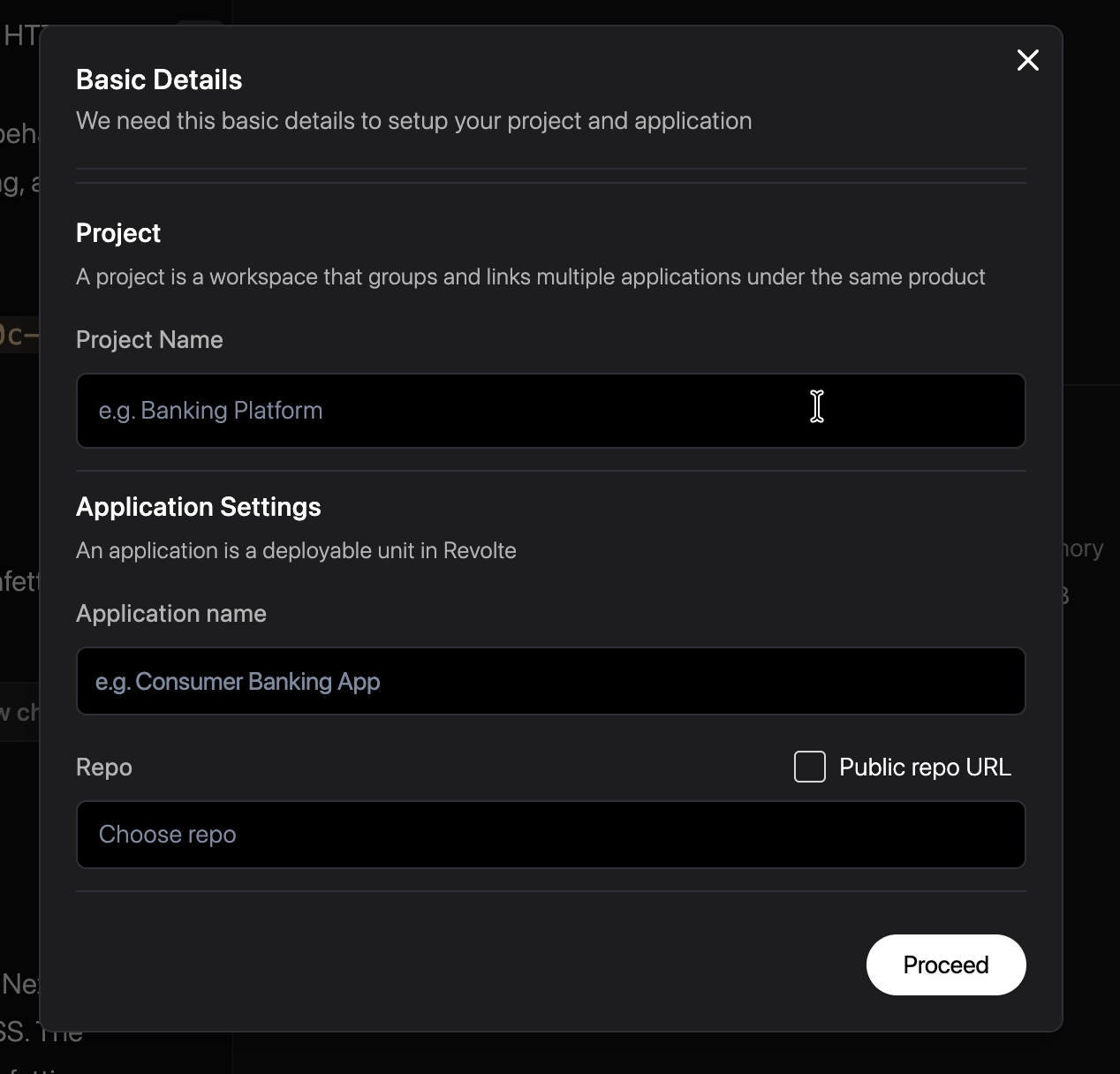
 If the project or application does not already exist, create them as new before continuing. This ensures the Preview deployment is associated with the correct workspace and app configuration.
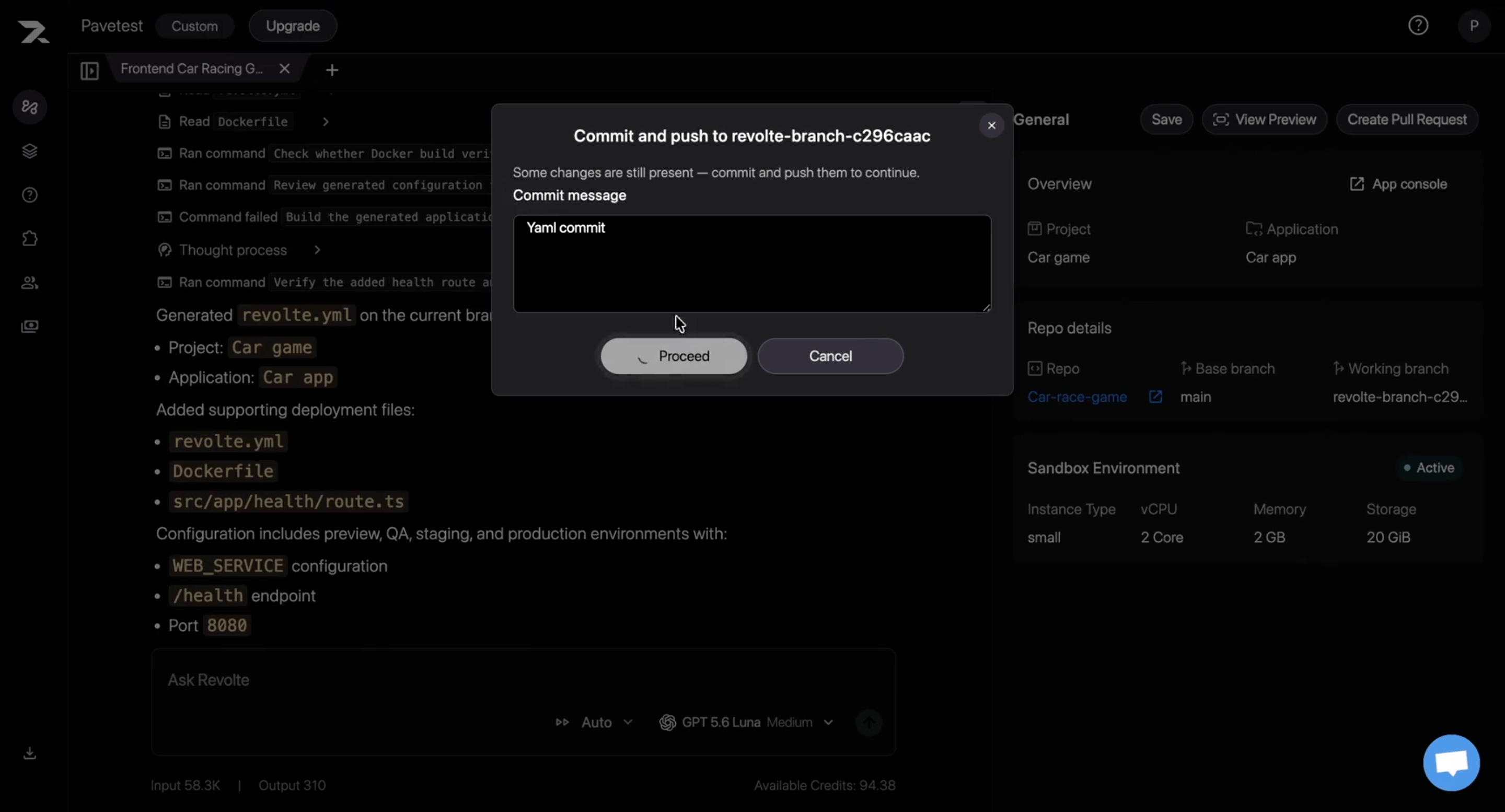
 Click **View Preview** again. If the generated files are still uncommitted, enter a commit message and click **Proceed** to commit and push them to the working branch.
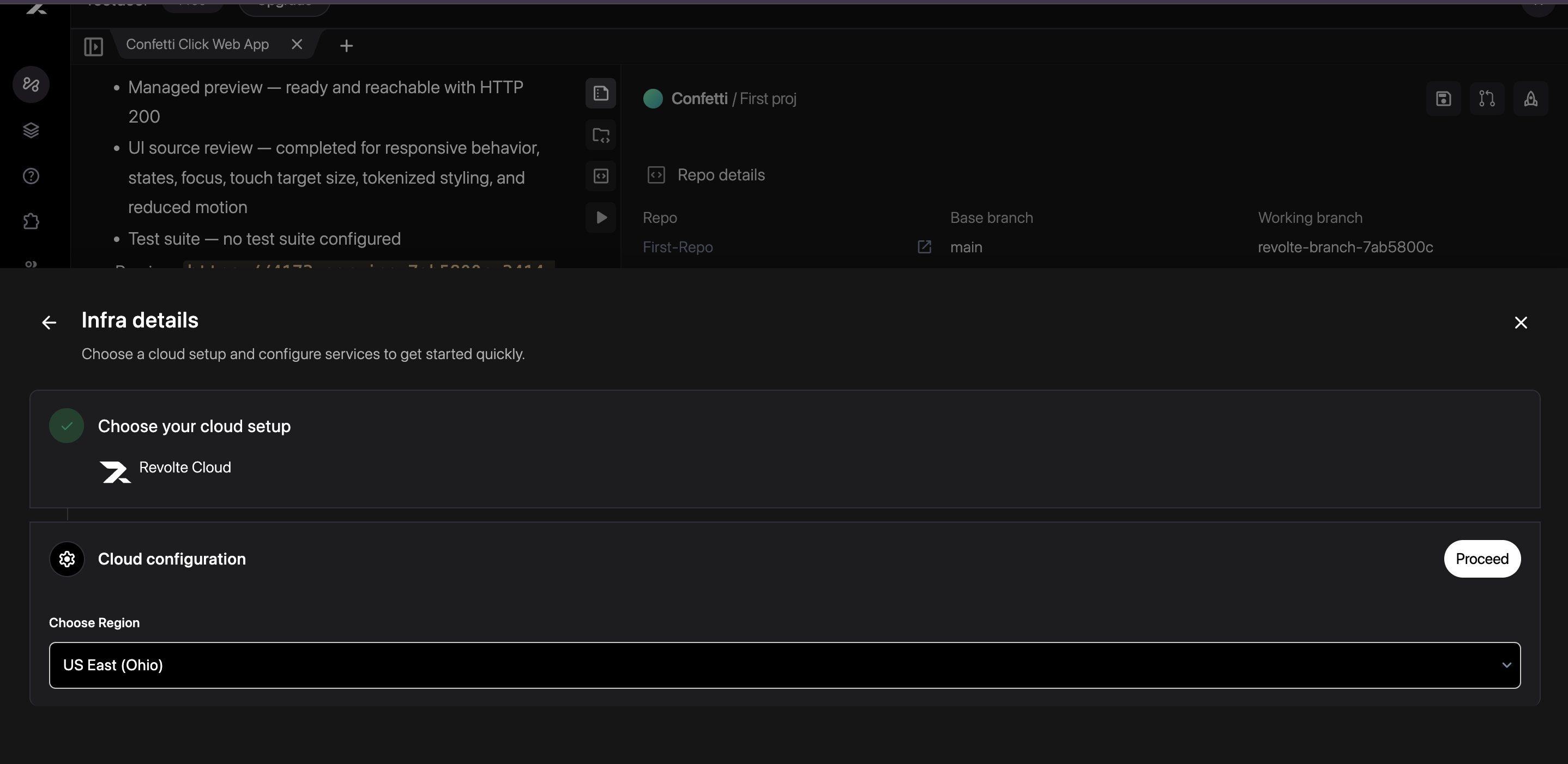
 Choose the cloud provider and target infrastructure for the Preview environment before you launch it. Revolte uses this selection to provision the correct resources and runtime settings for your application.
 Revolte opens the application's deployment configuration page. Review the **Preview** environment in `revolte.yml`, confirm its service resources and runtime properties, then click **Launch**.
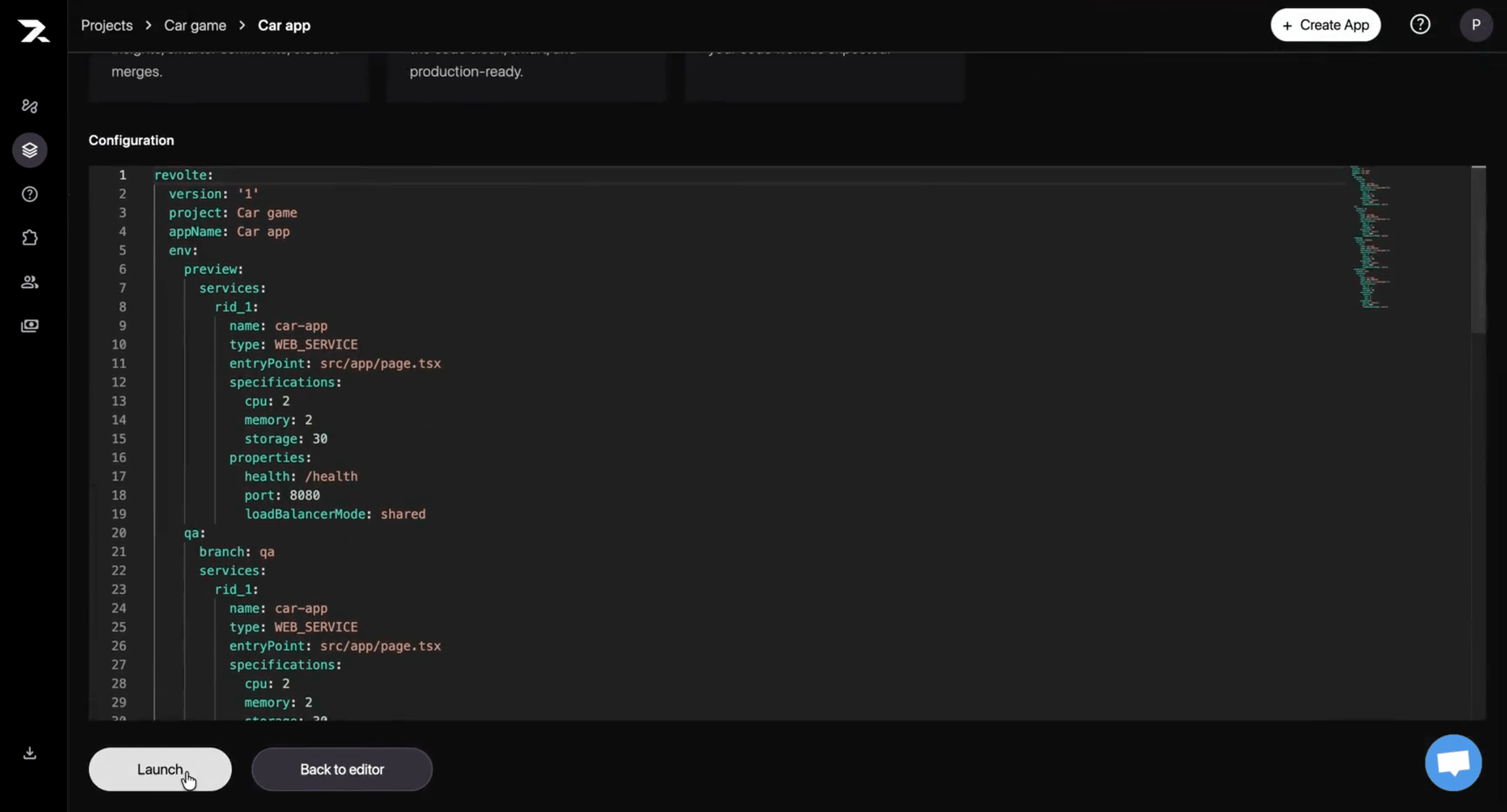 For every available setting, see the [`revolte.yml` reference](/yaml/overview).
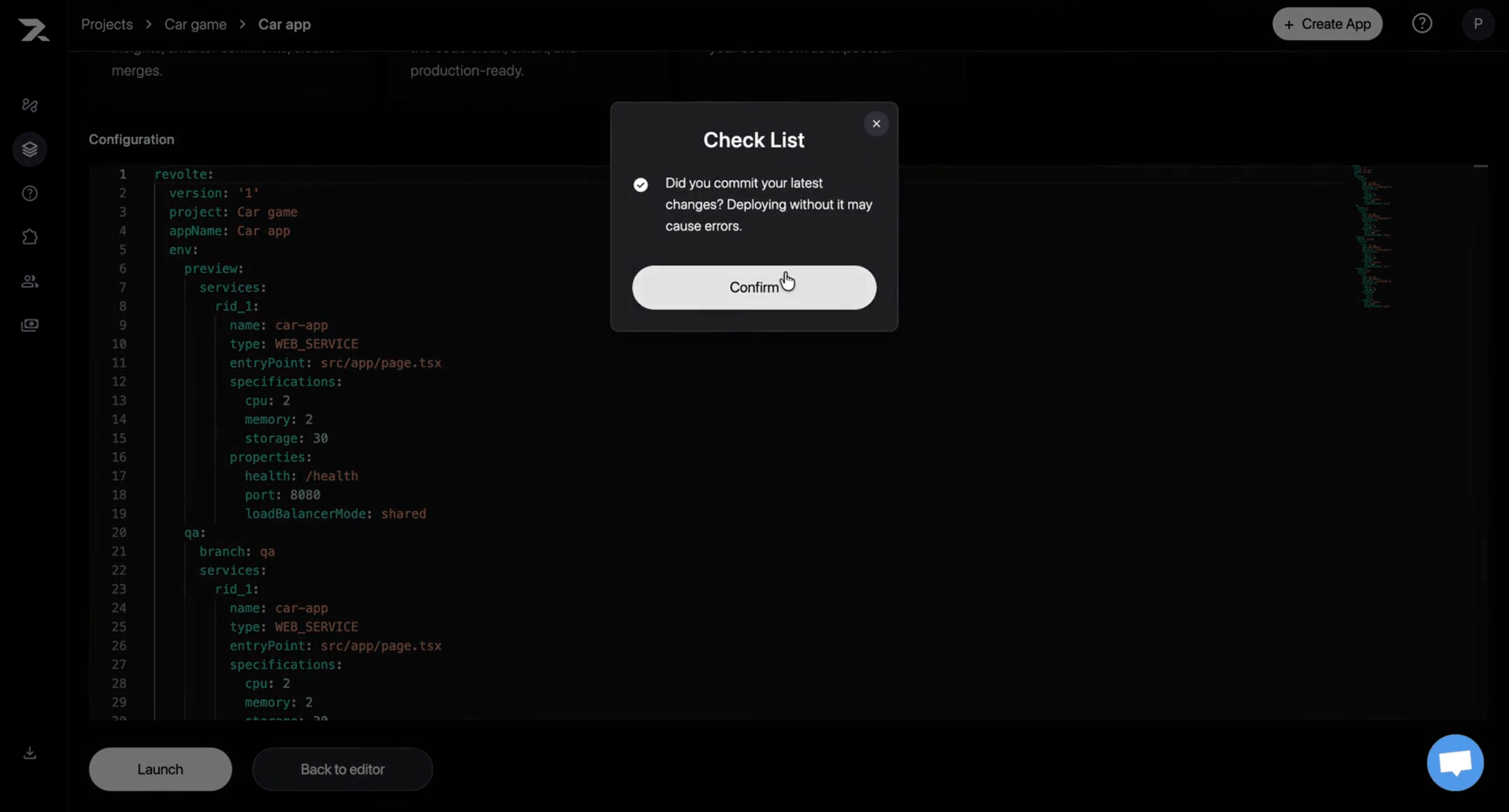
Confirm that the latest deployment changes are committed. Click **Confirm** to start the Preview deployment.
For every available setting, see the [`revolte.yml` reference](/yaml/overview).
Confirm that the latest deployment changes are committed. Click **Confirm** to start the Preview deployment.
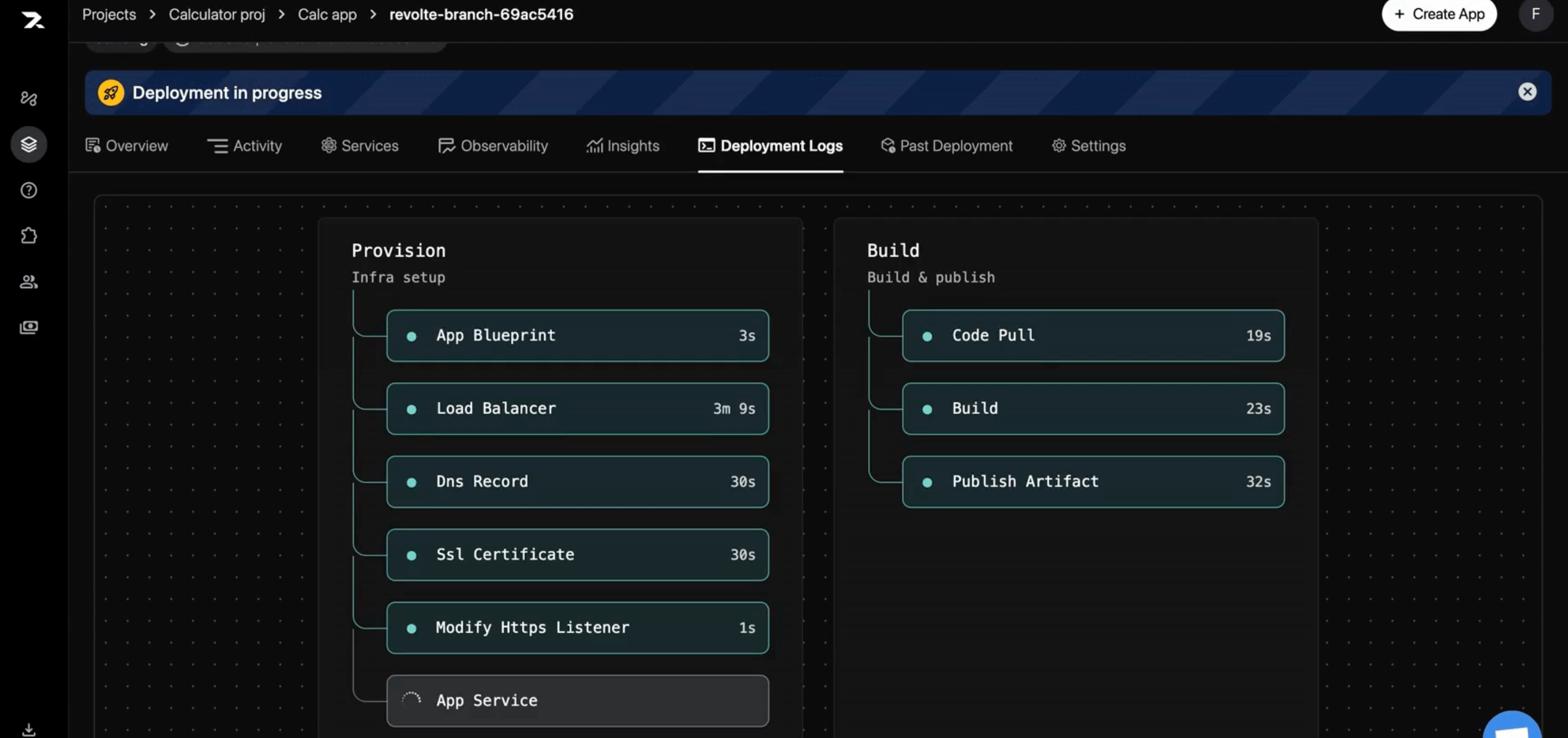
 While the Preview environment is building and deploying, the dashboard shows the ongoing activity and progress indicators. Wait for the deployment to complete before validating the application.
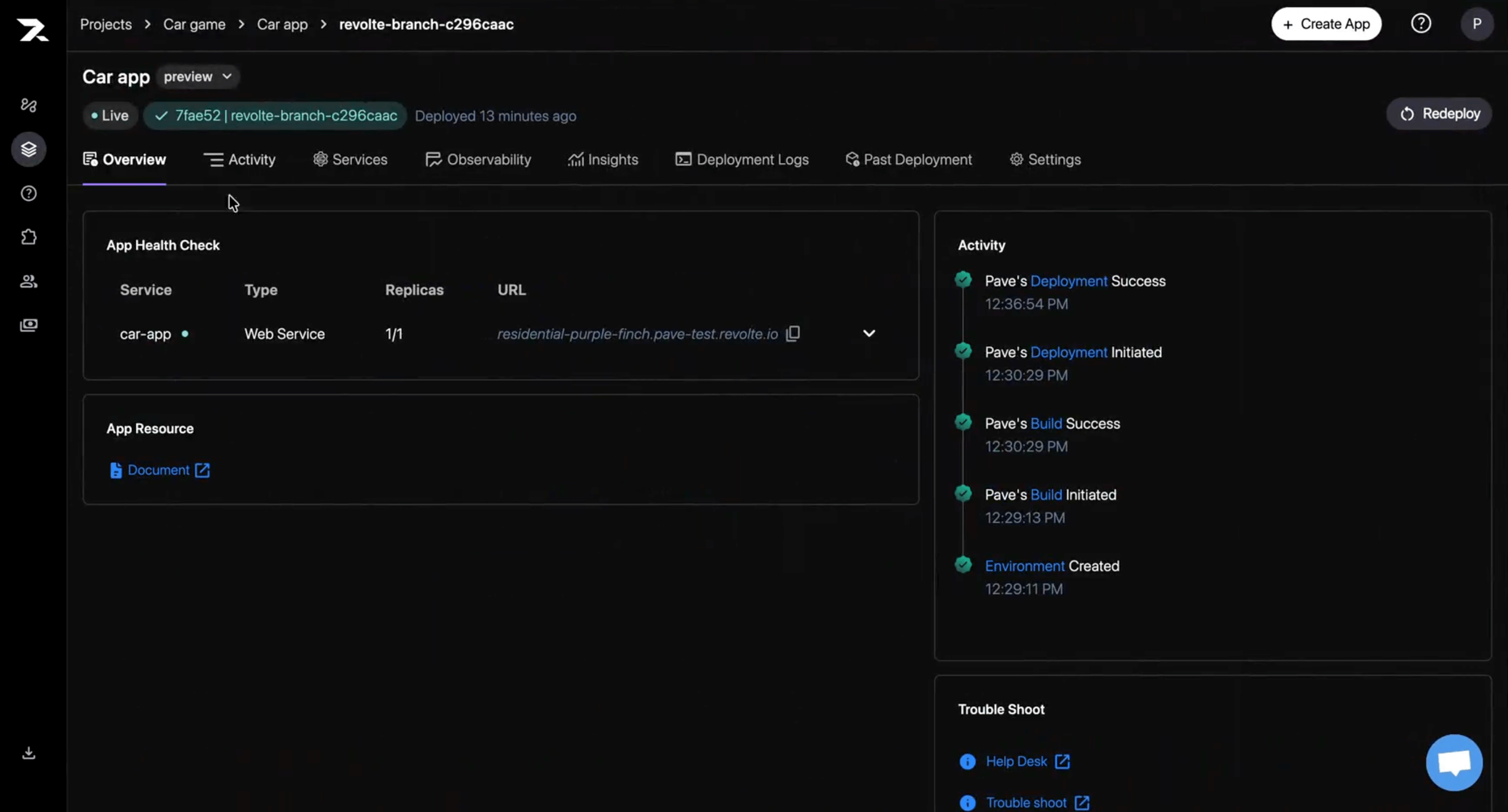
 Revolte opens the Preview environment dashboard. Follow the activity timeline until the build and deployment succeed, then verify that the application health check is **Live**.
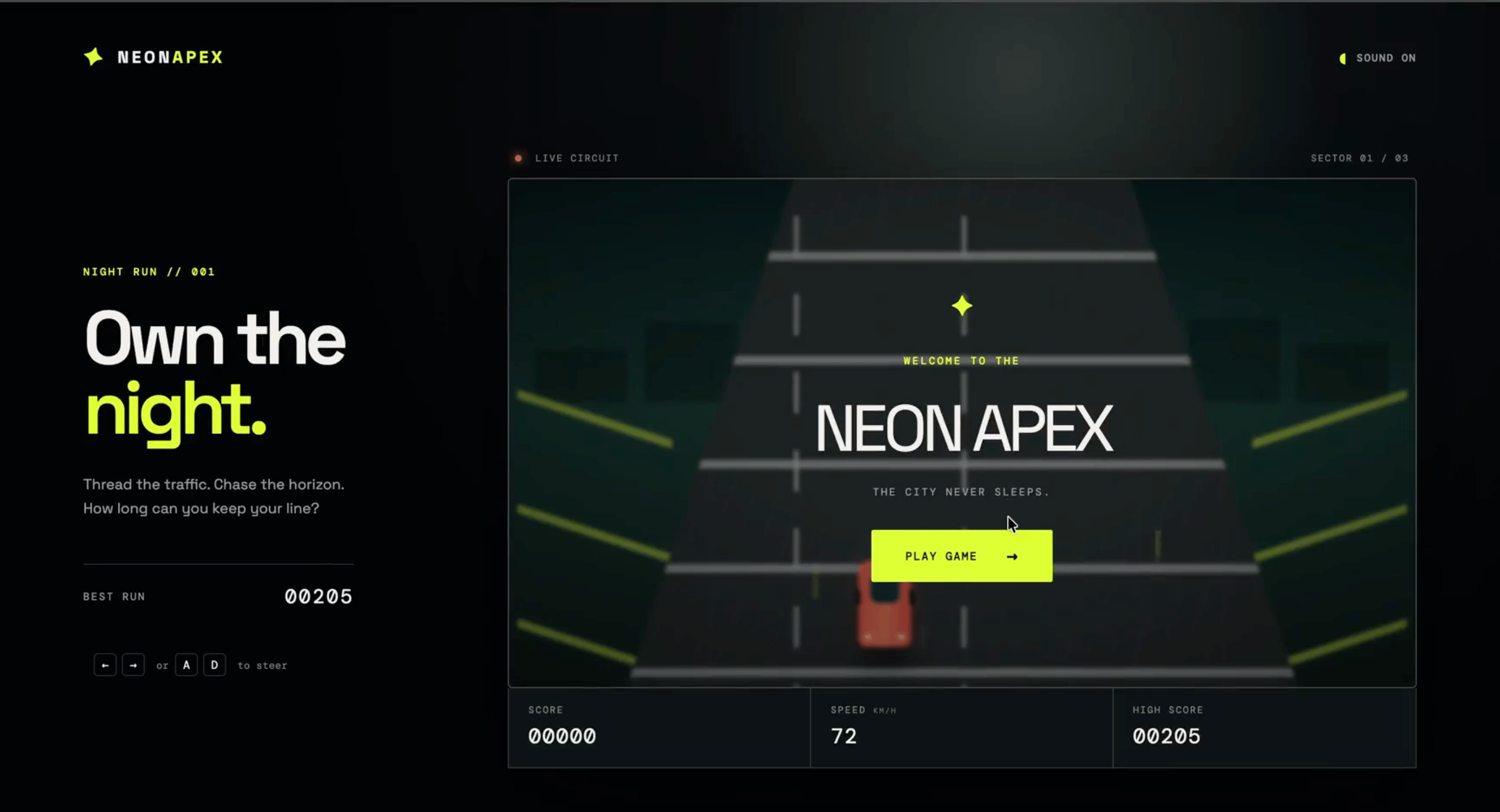
 Open the generated Preview URL and test the deployed application. If you find an issue, return to Interactive Chat, make the change, commit it, and redeploy the Preview environment.
 ## Next steps
* [Inspect deployment logs](/deployments/observability/deployment-logs)
* [Manage application logs](/deployments/observability/application-logs)
* [Understand the deployment lifecycle](/deployments/overview)
## Next steps
* [Inspect deployment logs](/deployments/observability/deployment-logs)
* [Manage application logs](/deployments/observability/application-logs)
* [Understand the deployment lifecycle](/deployments/overview)